|
|
Using the Math Question Types |
Number, Fraction, and Mixed Number Question Types
Classwork.com’s math question types collect numerical answers and grade them automatically. This article covers numbers, fractions, and mixed numbers in both editors, which handle them a little differently.
Numbers, Fractions, and Mixed Numbers in the Flex Editor
The Flex Editor doesn’t have separate Fraction and Mixed Number types. Instead, a single Numeric item handles all three, because students answer with numeric input. They can type:
- a whole number or decimal – for example, 5 or 5.4
- a fraction – for example, 2/5
- a mixed number – for example, 5 2/5
Because the answer is numeric input, it has to be written in numeric form. 5 2/5 works, but 5 and 2/5 or 5 & 2/5 does not – there’s no room for words or symbols like “and” or “&.” (The Flex Numeric item also doesn’t offer the stacked fraction box that the Slide Editor’s Fraction and Mixed Number types provide.) This applies to the answer key too: enter your correct answers in the same numeric form.
When you enter a correct answer, choose a Scoring type to control how student responses are matched:
- Exact: the response must match your correct answer exactly.
- Equivalent: any mathematically equivalent value is accepted (for example, 0.50 for 0.5, or 4/10 for 2/5).
- Rounded: responses are graded rounded to the number of decimal places in your answer.
- Range: any response from a low value to a high value (inclusive) is accepted.
Add a Math Answer Box (Slide Editor)
In the Slide Editor, numbers, fractions, and mixed numbers are three separate question types. In the Tool Box on the right, under Math, click the math item you want to use.

 |  |  |
After selecting a math question type, click on your Activity and drag to draw the answer box.
Number Question Type
To edit a Number question, click Edit on the toolbar.

The Edit Number popup will appear.
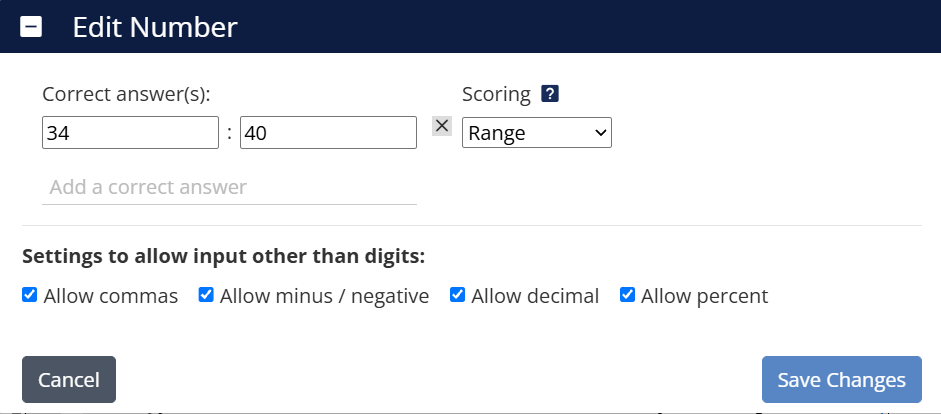
- Correct answer(s): Enter the value you want marked as correct. You can add up to 10 correct answers by clicking Add a correct answer.
Scoring Type
Use the Scoring type dropdown next to each correct answer to control how student responses are matched. The Number question type offers four options:
- Exact: The response must match your correct answer exactly.
- Equivalent: Any value mathematically equivalent to your correct answer is accepted (for example, 0.50 for 0.5).
- Rounded: Classwork infers the number of decimal places from the value you typed and grades the response rounded to that place. For example, entering 45.552 grades answers rounded to the third decimal place.
- Range: Two number inputs appear, a low value and a high value. Any response from the low value to the high value (inclusive) is marked correct.
Optional Input Settings
Use these settings to allow input other than digits:
- Allow commas: Permits commas in numbers (example: 1,000).
- Allow minus / negative: Allows negative values.
- Allow decimal: Enables decimal input.
- Allow percent: Lets students include the percent (%) symbol.
Click Save Changes when finished.
Fraction Question Type
To edit a Fraction question, click Edit on the toolbar.

The Edit Fraction popup will appear.
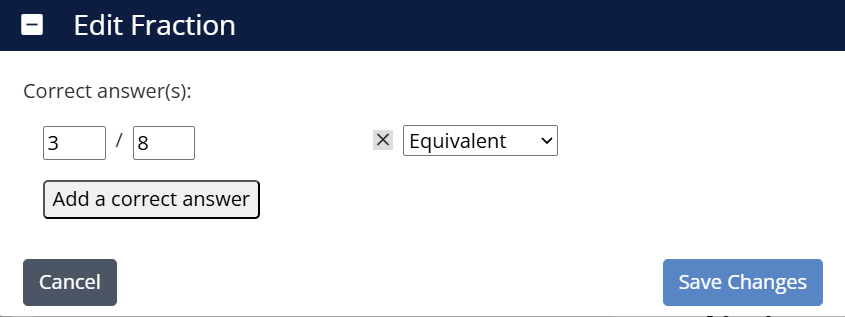
- Type the correct answer(s) in fraction form.
- Click Add correct answer to include alternate correct responses (up to 10).
- If you want to accept equivalent fractions, enter each acceptable version as a correct answer.
Use the Scoring type dropdown next to each correct answer to control how responses are matched. The Fraction question type offers two options:
- Exact: The response must match your correct answer exactly.
- Equivalent: Any mathematically equivalent fraction is accepted.
Click Save Changes when finished.
Mixed Number Question Type
To edit a Mixed Number question, click Edit on the toolbar.

The Edit Mixed Number popup will appear.
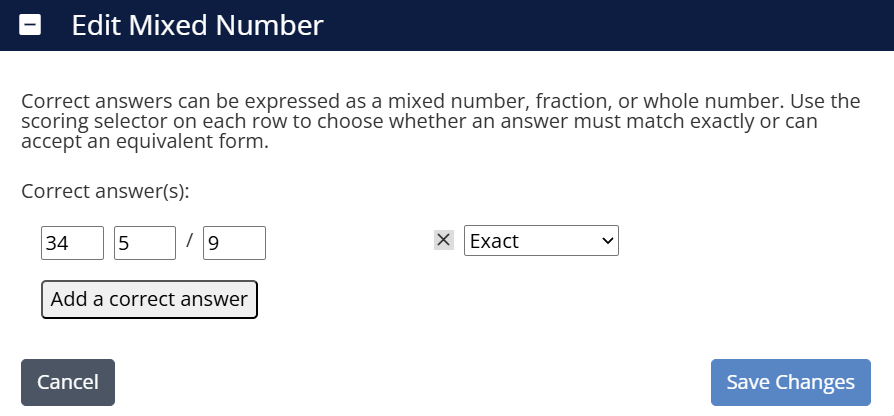
- Enter the correct answer(s) to the problem.
- Click Add correct answer to include multiple acceptable responses (up to 10).
- Correct answers can be written as a mixed number, fraction, or whole number.
Use the Scoring type dropdown next to each correct answer to control how responses are matched. The Mixed Number question type offers two options:
- Exact: The response must match your correct answer exactly.
- Equivalent: Any mathematically equivalent value is accepted.
Click Save Changes when you’re finished.
Putting It All Together
In the Flex Editor, one Numeric item covers numbers, fractions, and mixed numbers. In the Slide Editor, Number, Fraction, and Mixed Number are three separate types. Either way, these math tools keep responses accurate, auto-graded, and easy to review, so pick the setup that fits your Activity and your students’ needs.
Was this article helpful?
That’s Great!
Thank you for your feedback
Sorry! We couldn't be helpful
Thank you for your feedback
Feedback sent
We appreciate your effort and will try to fix the article