|
|
Uploading an Image to Your Activity |
Image Tool
Use the Image tool to upload pictures to your Classwork.com Activity. Once added, you can resize the image, adjust display options (like transparency or borders), edit the image inside the editor, and even turn an image into a clickable link.
Upload an Image
- In the Tool Box on the right, click Image.
- Your cursor will turn into crosshairs. Click and drag to draw a box where you want your image.
You can move and resize it later if you need to. - The upload window will appear:
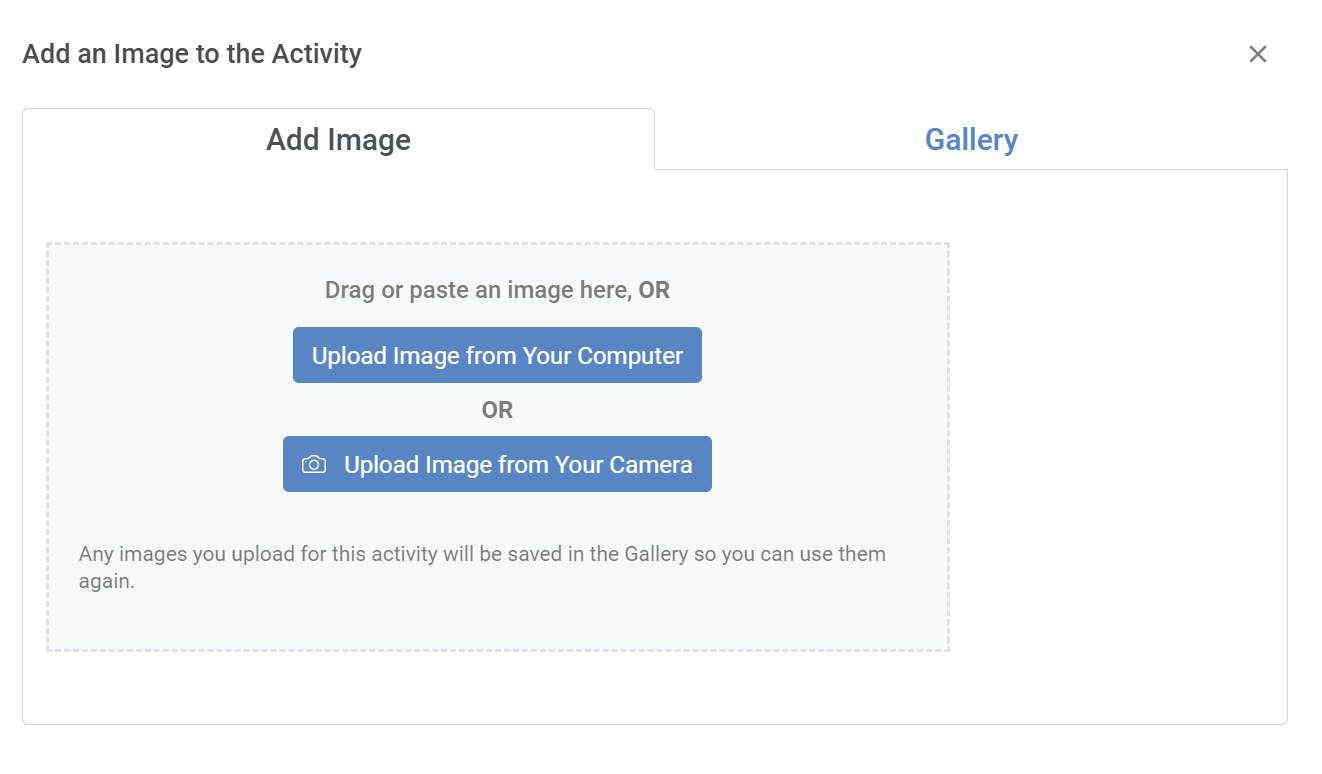
- Choose an image from your computer or camera, drag an image into the gray box, or select one from the gallery. Once selected, the image will appear on your Activity.
Resizing the Image
Click the image to select it. Then click and drag any of the handles around the image to resize it.
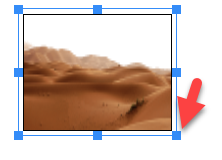
Image Options
Select the image to view its options on the toolbar.
- Border Color: Adds a 1-pixel border in the color you choose. Select No Border to remove the border.
- Lock Aspect Ratio: Keeps the image’s proportions as you resize it.
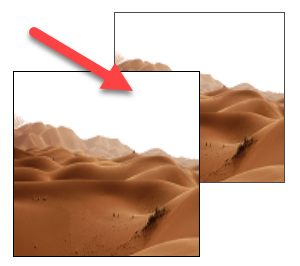
- Transparent: This requires an image that already has a transparent background. When enabled, objects behind the transparent areas will show through. When disabled, the background appears solid white.
- Transparent On:
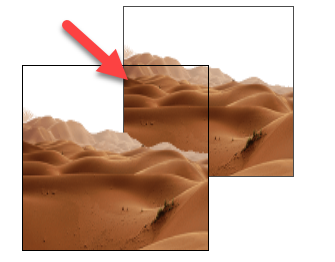
- Transparent Off:
- Draggable: Allows students to drag the image and place it where they want. You can also create a Drag and Drop question by connecting the image to a Drop Zone. See the instructions here (you will not need the Snipping Tool if the image is already draggable).
Edit an Image After Uploading
Once an image has been added to your Activity, you can edit it directly in the Classwork editor.
Open Image Editing Mode
- Double-click the image, or
- Select the image and click the blue Edit button in the toolbar
Image Editing Tools
When editing an image, a small toolbar will appear with these tools:

- Select: Select and move elements placed on top of the image.
- Delete: Removes shapes that have been added to the image.
- Undo and Redo: Step backward or forward through recent edits.
- Shape: Currently supports rectangles only. Rectangles act as color blocks that can cover or hide parts of an image.
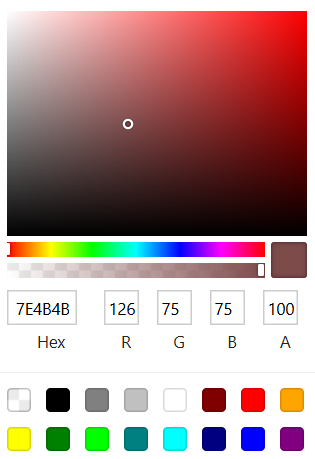
When a rectangle is selected, you can customize:
- Fill Color
- Stroke Color (border color)
- Stroke Width (border thickness)

Color selection includes:
|
|
Crop Tool
Use Crop to trim the visible area of the image. After adjusting the crop area, two options appear just above the image:

- Apply (checkmark) to confirm the crop
- Cancel (X) to discard the crop
Select Apply to crop the image.
Saving Image Edits
When you are finished editing, click the blue Save button in the upper-right corner of the image editor.
Saving will flatten all edits into a single image. Once saved, edits cannot be undone.
Important: When you click Save, all edits are permanently applied and flattened into the image. You will not be able to undo or modify individual edits afterward.
Add a Link to an Image
You can turn an image into a clickable link, whether it’s part of your original upload or an image you added using the Image tool.
- Draw a box around the image area.
- Click Insert, then select Link from the Content Tools menu.
- Paste the URL in the pop-up window.
- Optional: Add a label. If you want the image itself to be the only clickable element, leave the label blank.
- Click OK.
Now, when students or teachers click the image area, they’ll be taken to the linked URL.
Was this article helpful?
That’s Great!
Thank you for your feedback
Sorry! We couldn't be helpful
Thank you for your feedback
Feedback sent
We appreciate your effort and will try to fix the article