|
|
How to Make Assignments for Your Students |
Assign Activities
Once you have created and tested your activity, the next step is to give students access by creating an assignment.
Open the Assign Screen
You can open the Create Assignment screen in either of these ways:
- From the Activities page, check the box next to the activity and click Assign in the Activity Menu.

- Or, click into the activity file and select Create New Assignment.
Both methods open the Create Assignment screen.
Assignment Step 1 of 3: Choose How to Deliver the Assignment
Select the platform you want to use:
- Classwork
- Google Classroom
- Canvas
- Schoology
Using the Classes Feature
If your account has the Classes feature set up, you may see additional options during the assignment process that allow you to assign work directly to your classes.
If you have not set up classes, the assignment process works the same as it always has. You can continue assigning activities using the standard Classwork, Canvas, or Schoology options.
If classes are available, you can select one or more of your classes during the assignment process.
A separate assignment will be created for each selected class.
- All Students assigns the activity to every student currently in the class and to students who join the class later.
- Select Students assigns the activity only to the students you choose. Students who join the class later will not receive the assignment.
If you want to use the Classes feature but have not set it up yet, see: Sync or Add New Classes (Setup Classes and Students).
Assignment Step 2 of 3: Delivery-Specific Settings
This step depends on how you are delivering the assignment.
- Classwork, Canvas, and Schoology with Classes enabled: Select one or more classes, then choose whether to assign to All Students or Select Students.
- Classwork, Canvas, and Schoology: If you are not using Classes, choose how students will sign in, either with Google or with Name or ID.
- Google Classroom: Select one or more Google Classroom courses and, if needed, specific students.
Assignment Step 3 of 3: General Settings
The final step includes your assignment settings.
Settings Available for Classwork, Canvas, and Schoology
- Enable Open Time: Set the date and time when the assignment becomes available. Students who try to open it early will see a message showing when it opens.
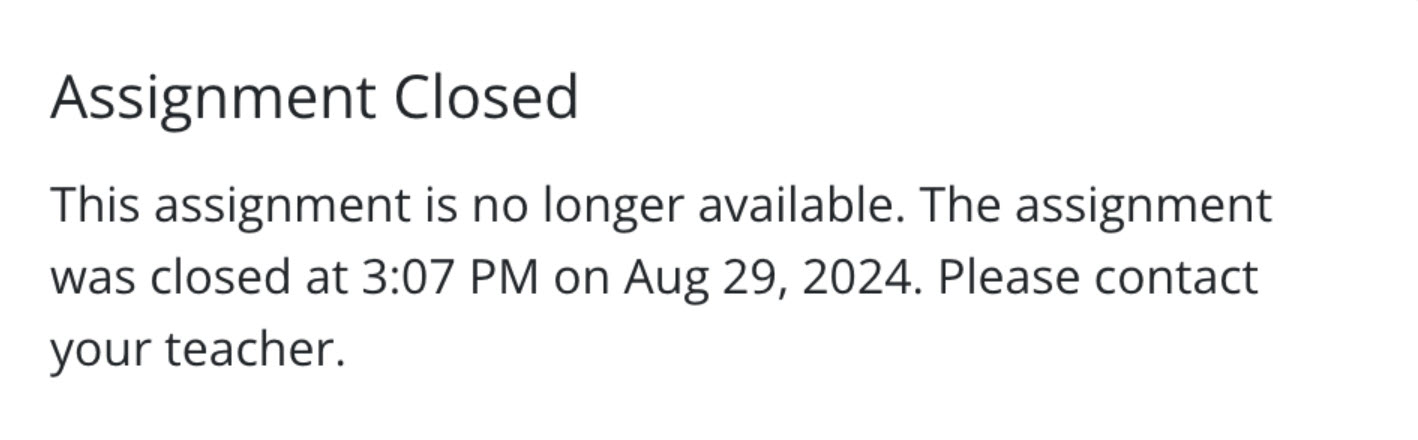
- Enable Close Time: Set the date and time when the assignment becomes unavailable. If students are working when the close time arrives, their work is auto-saved and they will see a message.
- Enable Due Date: Marks work as late after the due date, but does not prevent students from accessing the assignment.
- Enable Time Limit: Starts a timer when a student opens the assignment. The timer continues even if the student leaves and comes back later. When time runs out, the work is automatically submitted.
- Disable Submit Button: Prevents students from submitting early by accident. They can keep working until you mark the submission complete.
- Students Can Check Answers Before Submission: Choose how many times students can check answers before they submit.
- Minimum Score (%) to Submit: Require students to reach a certain score before they can submit.
- Display Score As: Choose how scores appear for both you and your students.
- After Submission: Control what students see immediately after they submit.
- When Work Is Returned: Control what students see after you return graded work.
- Student Can Copy and Paste Text: Allow or prevent students from pasting text from outside sources.
- Student Tools: Choose which tools students can use while working.
Students Can Check Answers Before Submission
- No
- 1x to 3x
- Unlimited
- Custom
Minimum Score (%) to Submit
- 50% to 100%
- Custom
Display Score As
- Score %
- Points Earned
- Points Earned / Points Possible
- Points Earned / Points Possible (Score %)
After Submission Options
- Hide student's work
- Show only total score to student
- Show item-by-item scoring to student
- Show correct answers to student
When Work Is Returned Options
- Show only final score and student's work
- Show item-by-item scoring to student
- Show correct answers to student
Student Tools
- Text boxes
- Drawing
- Links
- Math
- Images
- Audio
- Speech to Text
- Read Aloud
Additional Google Classroom Settings
Google Classroom includes all of the general settings above, plus these Google Classroom-specific options:
- Assignment Status: Assign immediately, schedule for later, or save as a draft.
- Assignment Points to Use in Google Classroom: Sets the point value pushed to Google Classroom. This does not change the points in Classwork.
- Auto-Sync Scores: Turn this off if you want to control when scores are sent to Google Classroom.
- Block Students Not in the Class: Prevents students outside the selected Google Classroom course from accessing the assignment.
Assignment Detail Screen
After you create the assignment, Classwork assigns the activity to your students.
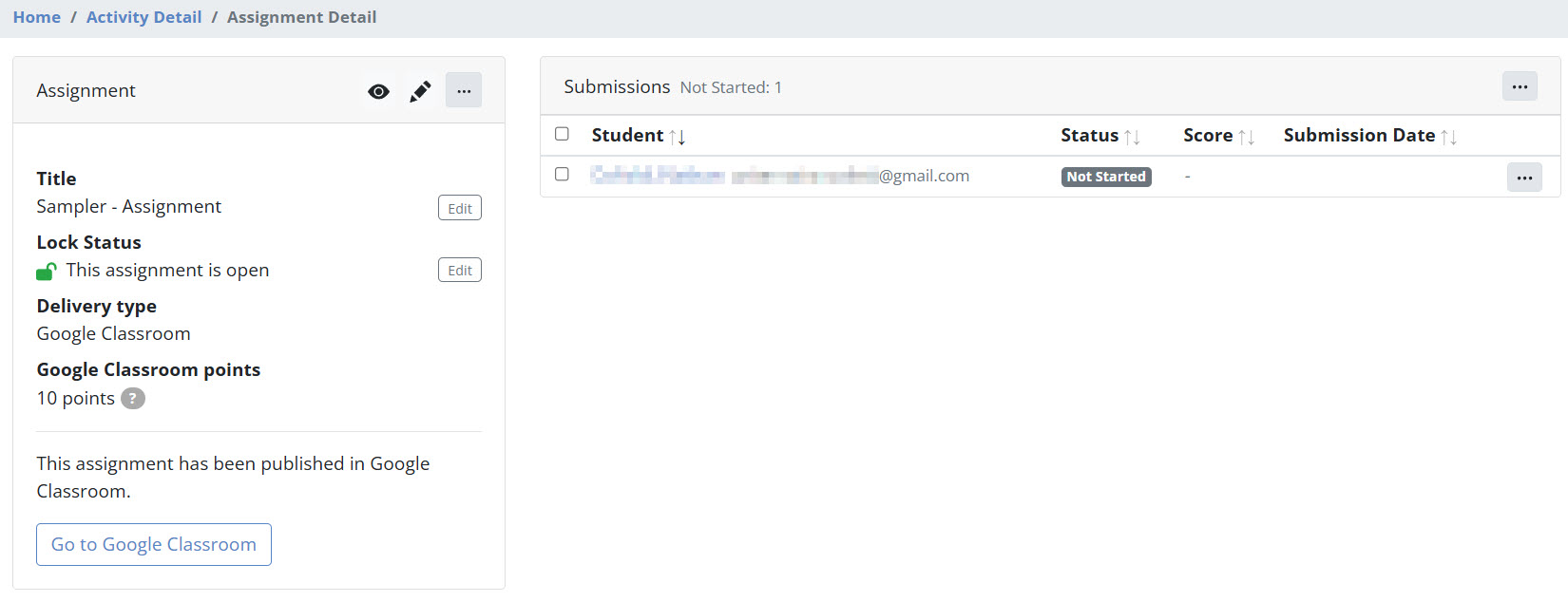
From the final screen, you can monitor student submissions in real time.
You can also:
- Preview the assignment
- Edit the answer key
- Rename the assignment
- View student names
- Edit, lock, restore, or archive the assignment
- Sync with connected platforms
Next Step
Your students now have access to the assignment. The more assignments you create, the faster this workflow will become.
Was this article helpful?
That’s Great!
Thank you for your feedback
Sorry! We couldn't be helpful
Thank you for your feedback
Feedback sent
We appreciate your effort and will try to fix the article