|
|
Using the Hot Text Question Type |
Hot Text Question
The Hot Text question type allows you to enter a passage of text and make specific words or phrases clickable. Students select from the highlighted portions to indicate their answers.
Add a Hot Text Question
To insert a Hot Text question:
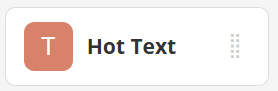
- Open the Question Type menu in the Tool Box.
- Select Hot Text.
 |  |
Your cursor will turn into crosshairs. Click and drag to draw the size of the question box.
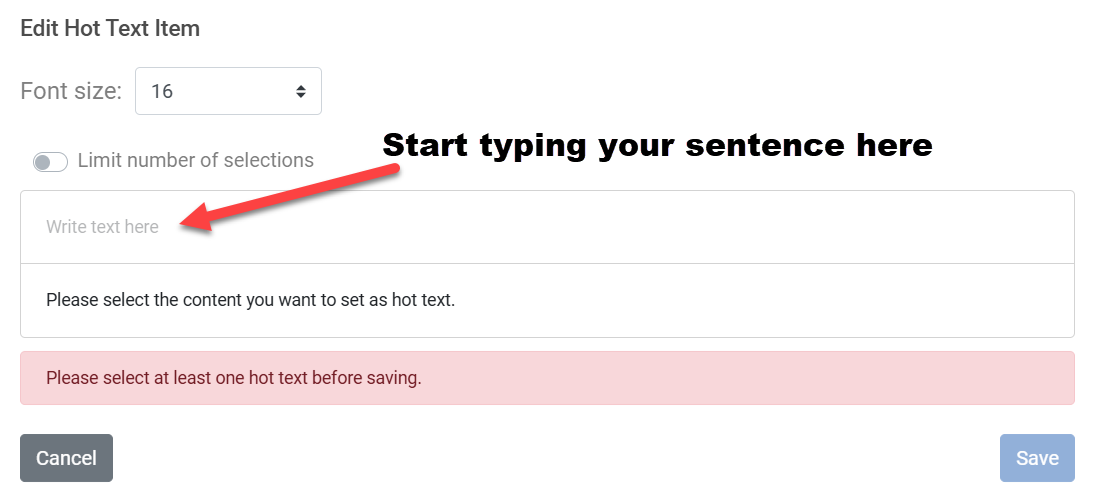
The editing window will appear:
Create Clickable Text
Click inside the field labeled Write text here and enter your full text passage.
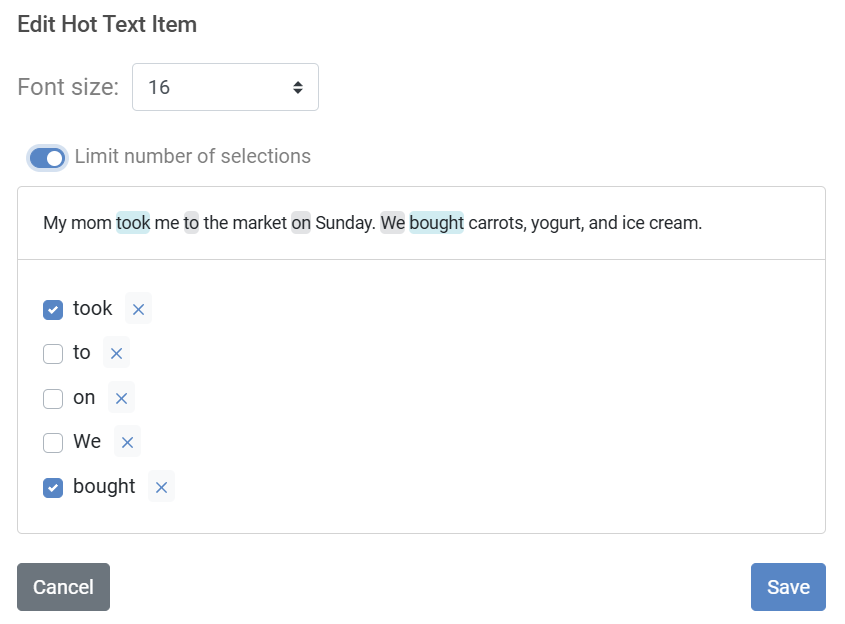
Highlight any word or phrase you want students to be able to select. In the formatting menu that appears, check Hot text.

Repeat this process for all correct answers and distractors.
Each time you mark a phrase as Hot text, it will appear below the passage with a checkbox.
Set Correct Answers
Use the checkboxes next to the phrases below the text to mark which options are correct.
When finished, click Save.
In the editor view:
- Correct answers appear highlighted in blue.
- Incorrect options appear highlighted in gray.

What Students See
Students see all selectable phrases highlighted in gray.
When they click a phrase:
- The selection turns blue and becomes underlined.
- Clicking again will deselect it.
Limit Number of Selections
By default, students may select as many phrases as they want.
If you enable Limit number of selections, students can only choose the same number of answers as you marked correct.
If they select too many options, one of their previous selections will automatically be deselected.
Scoring
Hot Text questions are auto-scored.
A response is marked correct only if:
- Every correct phrase is selected, and
- No incorrect phrases are selected.
Points are awarded in full based on the value you assigned.
Hot Text is a powerful way to build reading comprehension, grammar, vocabulary, and close-reading practice directly into your Activities.
Was this article helpful?
That’s Great!
Thank you for your feedback
Sorry! We couldn't be helpful
Thank you for your feedback
Feedback sent
We appreciate your effort and will try to fix the article