|
|
Using the Match Table Grid Question Type |
Match Table Grid Question
A Match Table Grid question presents students with a grid. Rows represent prompts and columns represent answer options. Each cell represents a possible match.
This is an efficient way to ask multiple questions that share the same answer choices. You can allow one correct answer per row or multiple correct answers per row.
Add a Match Table Grid
To insert a Match Table Grid:
- Open the Question Type menu in the Tool Box.
- Select Match Table Grid.
 |  |
Your cursor will turn into crosshairs. Click and drag to draw the size of the grid.
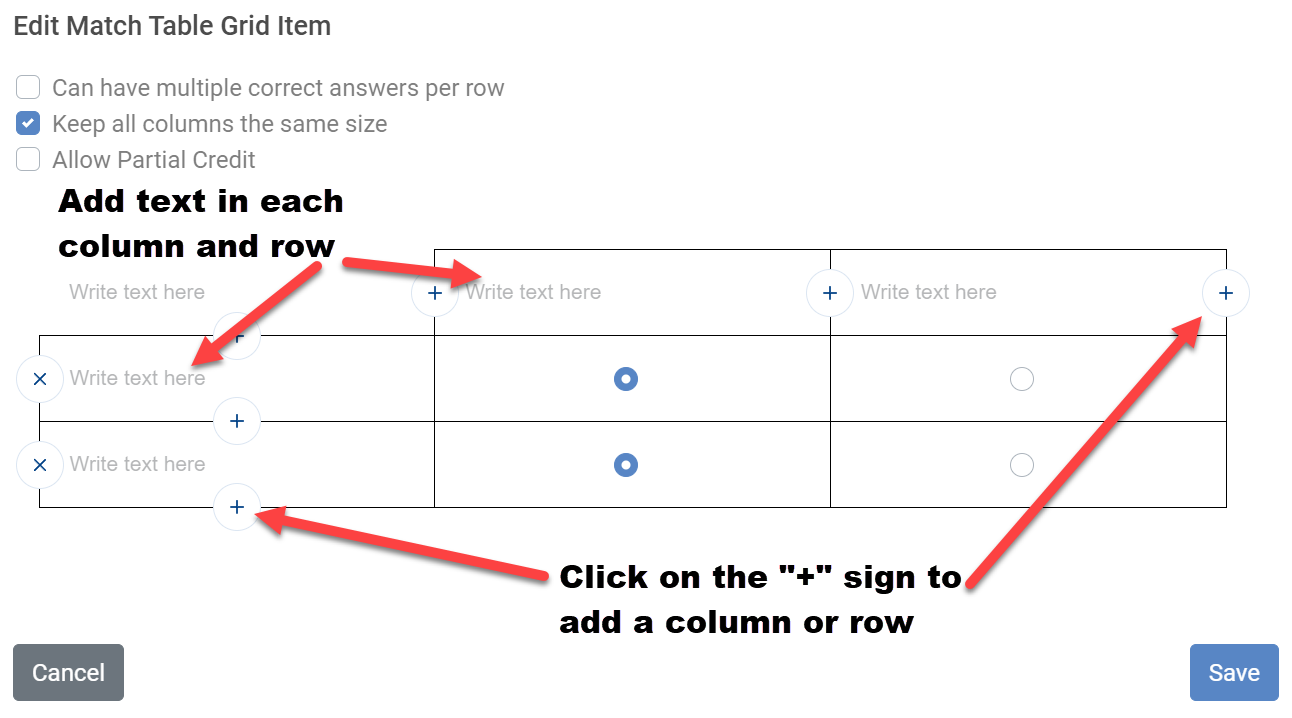
The editing window will appear:
Set Up Rows and Columns
Add labels to:
- The top row for answer choices
- The left column for question prompts
Use the + icons to add rows or columns. You can create up to 20 rows and 20 columns.
Use the x icon to remove a row or column.
Set Correct Matches
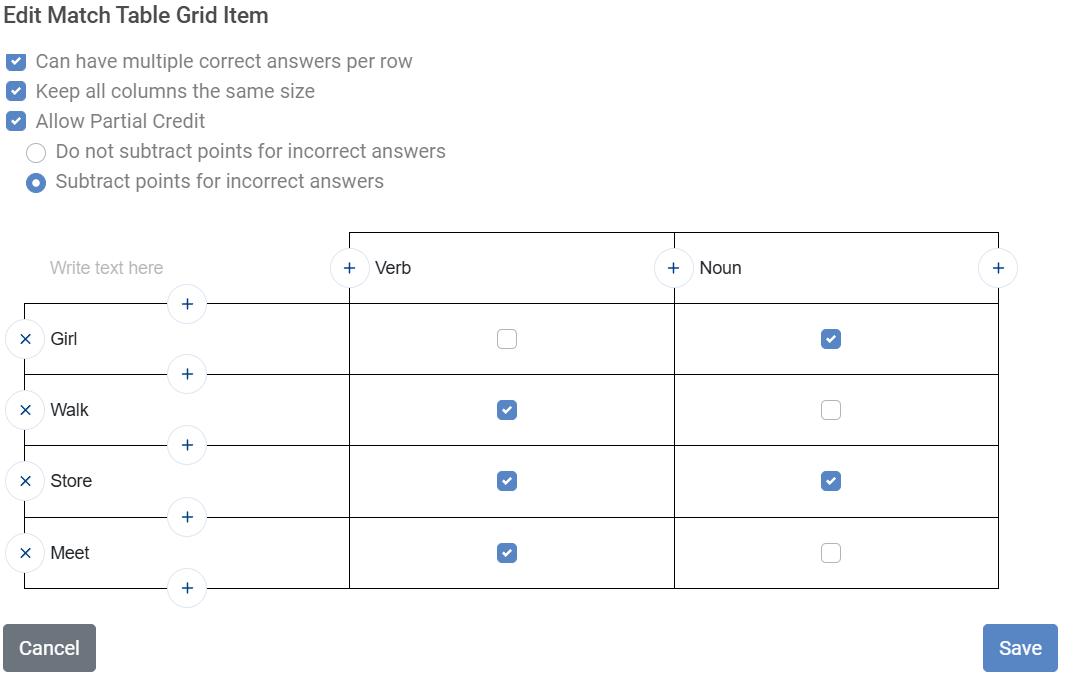
After entering row and column labels, select the cells that represent correct matches.
- If only one correct answer per row is allowed, cells will display radio buttons.
- If Can have multiple correct answers per row is enabled, cells will display checkboxes.
When finished setting your answer key, click Save.
Adjusting the Grid Size
After saving, you may need to resize the grid in the Activity editor to ensure all rows and columns display properly.
If the grid is too large, try reducing the font size in the editing window before resizing.
Use Preview to confirm formatting and verify your answer key.
What Students See
Students see a grid and select their matches by choosing the appropriate cells.
The question is marked correct only if all required matches are selected correctly.

Allowing Partial Credit
Enable Allow Partial Credit to award proportional points when students select some, but not all, correct matches.
For example, if a student selects two out of three correct matches, they will receive two-thirds of the total points.

Subtract Points for Incorrect Answers
If you enable Subtract points for incorrect answers, students will lose a portion of points for each incorrect selection.
For example, if a student selects two correct matches and one incorrect match:
- They earn credit for the correct matches
- They lose credit for the incorrect match
This setting discourages guessing and rewards careful selection.
Was this article helpful?
That’s Great!
Thank you for your feedback
Sorry! We couldn't be helpful
Thank you for your feedback
Feedback sent
We appreciate your effort and will try to fix the article