|
|
Using the Number Line Question Type |
Number Line
The Number Line question type allows students to answer by plotting points, selecting pre-plotted points, or defining intervals. You can customize the start and stop values, tick mark intervals, and labeling options.
Insert a Number Line Item
In the Tool Box on the right, under Math, click Number Line.
 |  |
Your mouse will turn to cross-hairs. Click and drag to draw the size you want.
Set Up Your Number Line
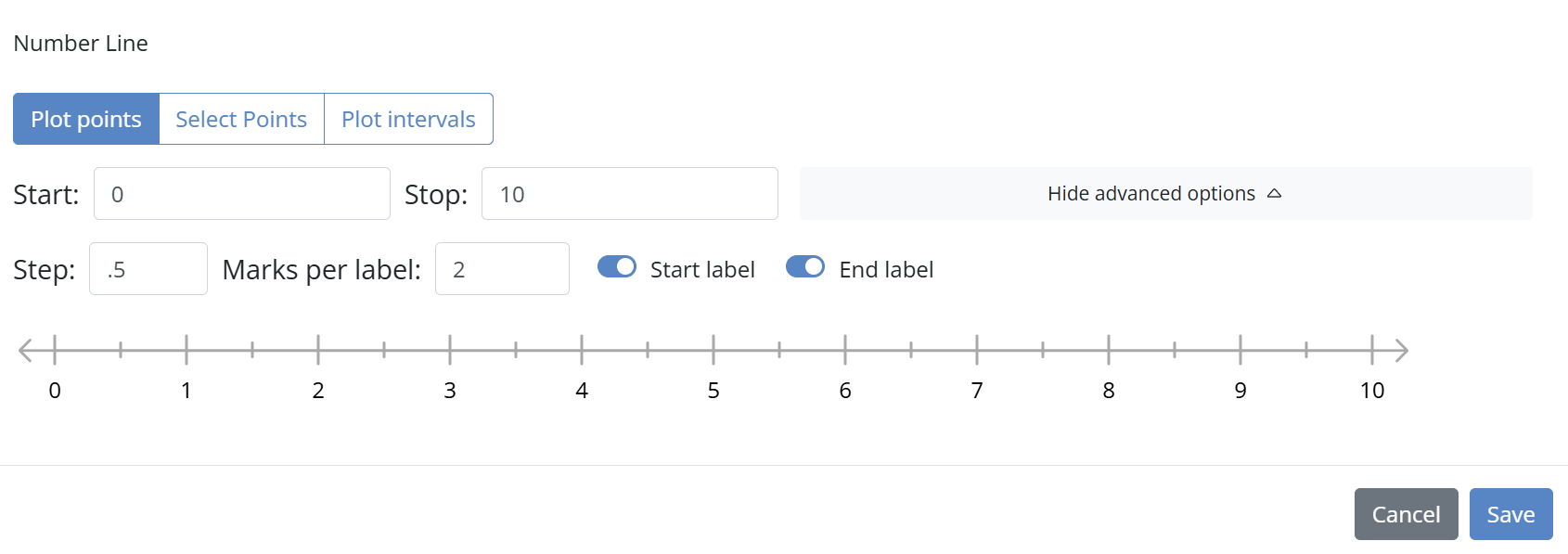
By default, the Number Line runs from 0 to 10 in whole number increments. You can adjust these settings in the editor.
- Change the Start and Stop values.
- Select Advanced Options to customize tick marks and labels.
Advanced Options
- Step: Controls how often tick marks appear. Enter decimals such as 0.5 to create intervals between whole numbers.
- Marks per Label: Controls how often labels appear. For example, entering 2 labels every other tick mark.
- You may hide or show the Start and Stop labels.
Note: Tick marks are limited to a maximum of 50. The Number Line supports whole numbers and decimals. Fraction intervals are not supported, but fractional values may be entered as decimals.
Choose the Interaction Type
Provide your question prompt using background content or a Teacher Text box placed near the Number Line.
- Plot Points: Students click one or more tick marks.
- Select Points: Pre-plotted points appear and students choose the correct ones.
- Plot Intervals: Students map inequalities using rays or points.
Set Up a Plot Points Question
Click each tick mark that represents a correct answer.

Students must select all required points to receive full credit.
Set Up a Select Points Question
- Click tick marks to determine which points will appear.
- Click the drawn points again to mark which are correct.

Turn on Limit Number of Selections if students should only be allowed to choose the same number of points as the correct answer count.

Set Up a Plot Intervals Question
Select Available Interval Tools
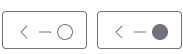
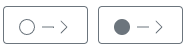
In the editor, use the Buttons section to choose which interval tools are available.
- Left-pointing rays represent less than inequalities.
- Right-pointing rays represent greater than inequalities.
- Solid endpoints indicate inclusion.
- Hollow endpoints indicate exclusion.
- Circles represent single-point equalities or exclusions.
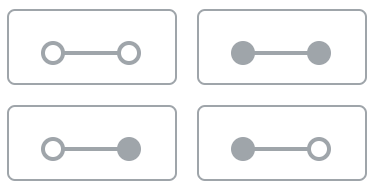
Drag interval endpoints to the correct tick marks.

Use the Remove button to delete an interval from the answer key.
Scoring
Students must completely answer the question to receive the assigned points. Partial credit is not awarded.
Was this article helpful?
That’s Great!
Thank you for your feedback
Sorry! We couldn't be helpful
Thank you for your feedback
Feedback sent
We appreciate your effort and will try to fix the article