|
|
How To Tag Questions With State Standards |
Add Standards to Questions
If you plan to use Classwork’s standards reporting tools, you will first need to align standards to your questions. You can tag standards before or after assigning the Activity.
To tag a question with a standard:
- Open the Activity in Edit mode. If Assignments already exist, open the Answer Key.
- Click on the question you want to align.
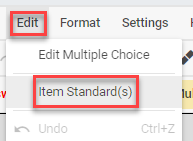
- Click Standard(s) from the top toolbar, or open Edit and select Item Standard(s).
 |  |
- Click Search Standards or choose from your recently used standards.

- Select your State or standards document.

- Select the Subject.

- Select the Grade Level.

- Click the standard that applies to the question.

The selected standard will appear at the top of the selection window. Hover over the abbreviation to see the full text.

Click Save Changes when finished.

Tag Multiple Standards
A question can align to more than one standard.
To add another standard to the same question, click Search Standards again. You will return directly to the standards document and can select an additional standard.
Remove a Standard from a Question
- Click the question.
- Click Standard(s) or open Edit and choose Item Standard(s).
- Click the x next to the standard you want to remove.
- Click Save Changes.
Shortcuts
Classwork remembers your recently used standards documents and recently aligned standards.
If you frequently use the same standards set, select it from your recent list instead of searching by state, subject, and grade.

You can also quickly select recently aligned standards from the list provided.

When you duplicate a question, its standards alignments are copied automatically. A quick workflow is to align the first question, duplicate it using Ctrl+D, then edit the answer as needed.
View Student Performance by Standard
Once questions are aligned, you can view student performance by standard in your reports.
Was this article helpful?
That’s Great!
Thank you for your feedback
Sorry! We couldn't be helpful
Thank you for your feedback
Feedback sent
We appreciate your effort and will try to fix the article