|
|
Creating an Activity |
Creating an Activity
This guide shows you how to create a new Classwork.com activity in a few minutes. When you start a new file, you choose one of three ways to build it: Import Document, AI Convert Document, or Compose New Activity. New to the two editors behind these options? See Slide Editor vs. Flex Editor.
Sign In
- Visit app.classwork.com and click Login in the upper right.
- Enter your username and password, or select Sign In With Google if your account is set up for Google sign-in.
Start a New Activity
After signing in, you land on your Activities page, where you view and organize all of your activities. Click the green + New File button.

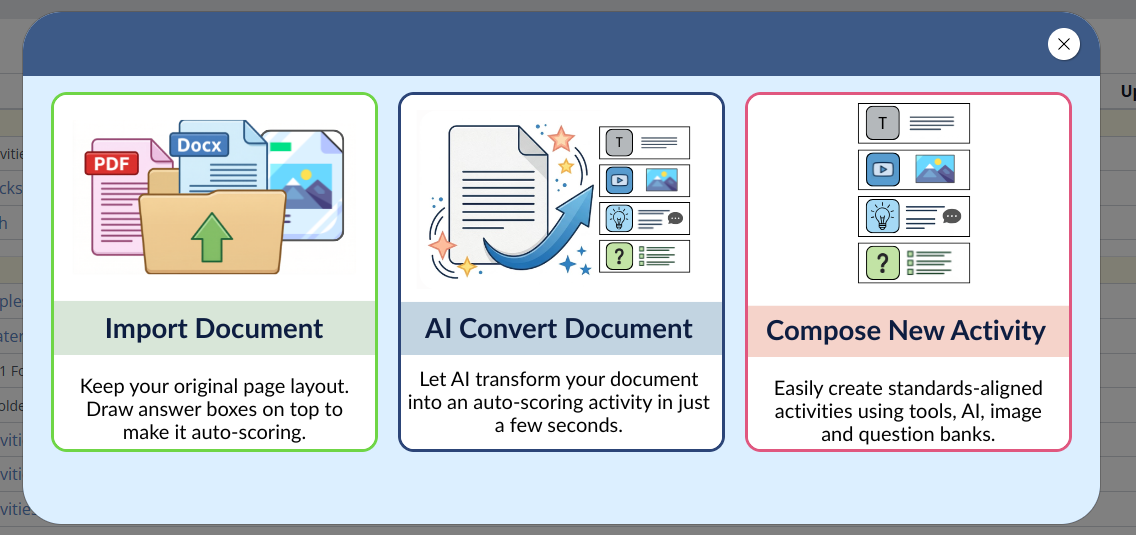
A pop-up window appears with three ways to start:
- Import Document: keep your document’s original layout and draw answer boxes on top (opens the Slide Editor). Best for existing PDFs and worksheets.
- AI Convert Document: let AI turn a document into an auto-scoring activity in seconds (opens the Flex Editor). Available on School and District licenses.
- Compose New Activity: build a standards-aligned activity from scratch using tools, AI, and item banks (opens the Flex Editor).
Import Document
Use this option when you already have a PDF or worksheet to turn into an interactive activity.
- In the pop-up, click Import Document.
- Choose a file from your computer or Google Drive. You can also drag and drop a file to begin.
Your file processes for a moment. Then choose which pages to include:
- Select pages using the thumbnails (selected pages are checked and highlighted in blue).
- Click Submit to continue.
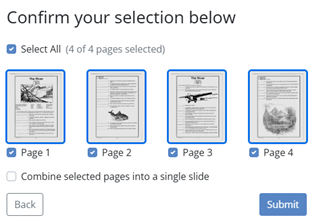
Your activity opens in the Slide Editor, where you draw answer boxes on top of your pages. See Adding Interactions to make it auto-scoring.
AI Convert Document
Use this option when you want AI to build the activity for you from a document. Click AI Convert Document, choose your file, and Classwork turns it into an auto-scoring Flex activity in seconds. (Available on School and District licenses.)
Compose New Activity
Use this option when you are starting from scratch. Click Compose New Activity to open the Flex Editor, where you build your activity from items: text, images, audio, video, and auto-scored question types. Inside the editor you can also generate content with Create with AI and pull ready-made questions from item banks.
For a full tour of the editor, see Flex Editor Overview. To generate questions with AI, see Use AI to Generate Content.
Name Your Activity
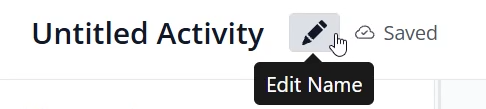
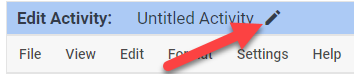
Give your activity a title so you can find it later. Click the pencil next to the activity title (Untitled Activity) and enter a name.
Next Steps
- Imported a document? Add your answer boxes and interactions: Adding Interactions.
- Once your activity is ready, assign it to students: Assign to Your Students.
Was this article helpful?
That’s Great!
Thank you for your feedback
Sorry! We couldn't be helpful
Thank you for your feedback
Feedback sent
We appreciate your effort and will try to fix the article