|
|
Upload a File and Work With It |
Upload a File and Work With It
From your Activities page, click the + New File button.

When the pop-up appears, choose UPLOAD a file and work with it to begin building an Activity from an existing document such as a PDF, Word file, or image.
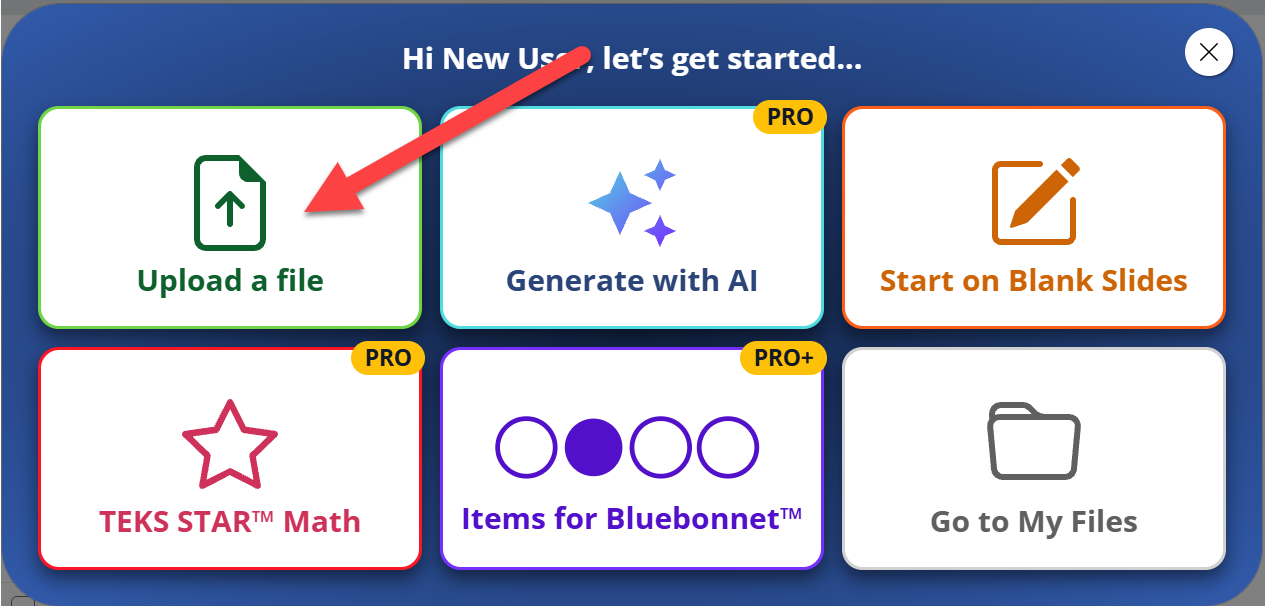
Upload Options
- Upload from your computer
- Drag and drop your file into the upload area
- Import directly from Google Drive

Choose Your Pages
After your file finishes processing, you'll see thumbnail previews of each page.
- Click the thumbnails of the pages you want to include
- Selected pages highlight in blue with a checkmark
- Use the option at the bottom if you want to combine each page into a single slide
- Click Submit when you're ready
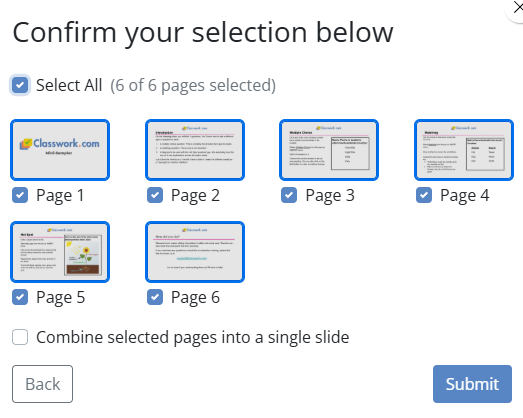
You’ll then open directly inside the Activity Editor, ready to add question types and interactive elements.
Are you new to Classwork.com? Welcome!
Click here to start your 30 day risk-free PRO trial today.
Was this article helpful?
That’s Great!
Thank you for your feedback
Sorry! We couldn't be helpful
Thank you for your feedback
Feedback sent
We appreciate your effort and will try to fix the article