|
|
Adding Interactions |
How to Add Auto-Scored Interactions in Classwork.com
This guide explains how to add auto-scored interactions to an activity in Classwork.com using the Activity Editor. You will learn how to add Multiple Choice, Matching, and Hot Spot question types and set answer keys for automatic grading.
Note: If you used the Content Assistant (AI) to generate questions, interactions and answer keys were created automatically. This tutorial focuses on manually adding interactions to uploaded PDFs, images, or activities built from scratch.
If you are following along with the Mini-Sampler, create a copy of the activity before continuing:
Make a copy of the Classwork.com Mini-Sampler .
How to Add a Multiple Choice Question
In this example, you will add a Multiple Choice interaction to Slide 4 of the Mini-Sampler.
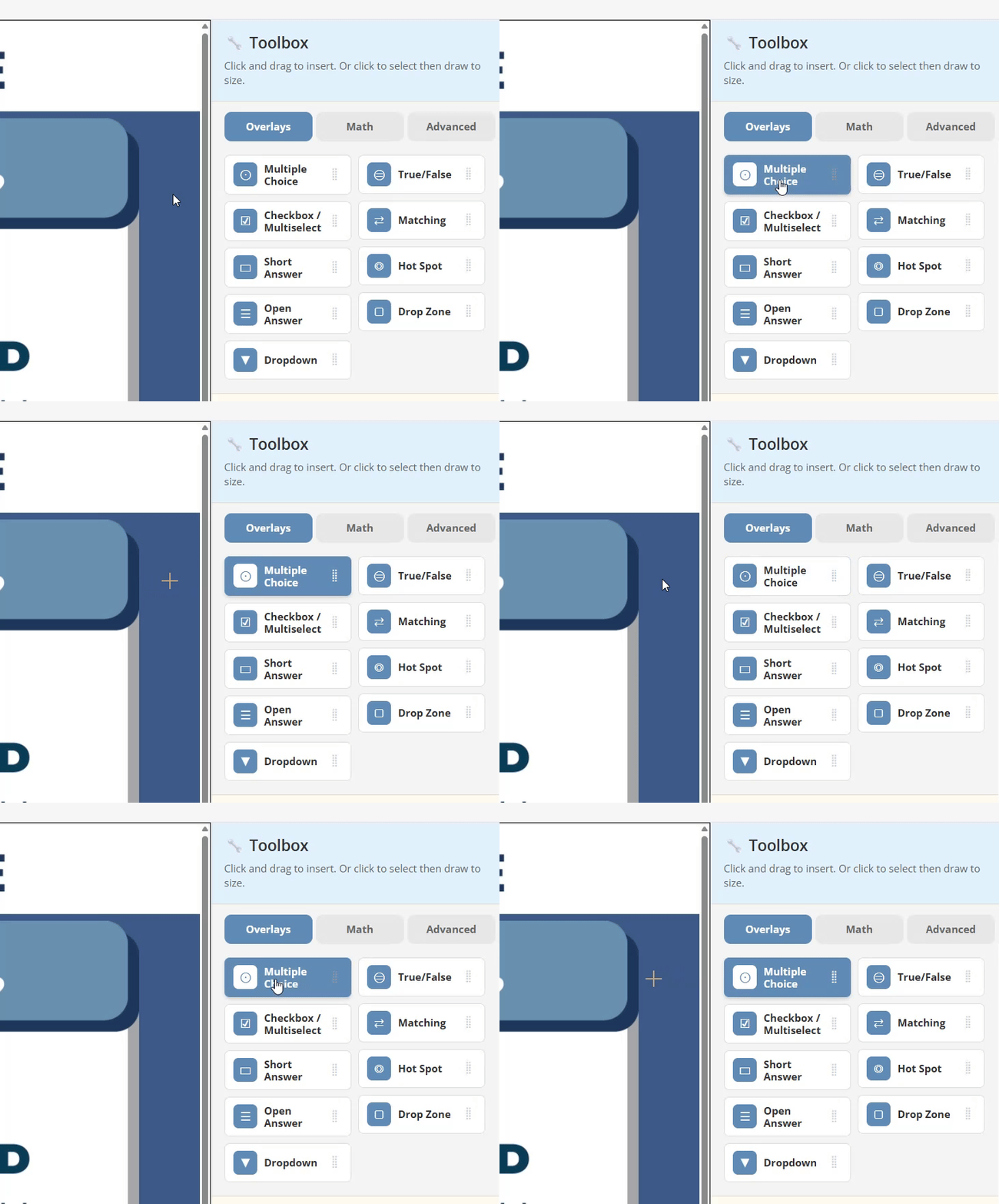
- In the Question Type menu on the right, click Multiple Choice.
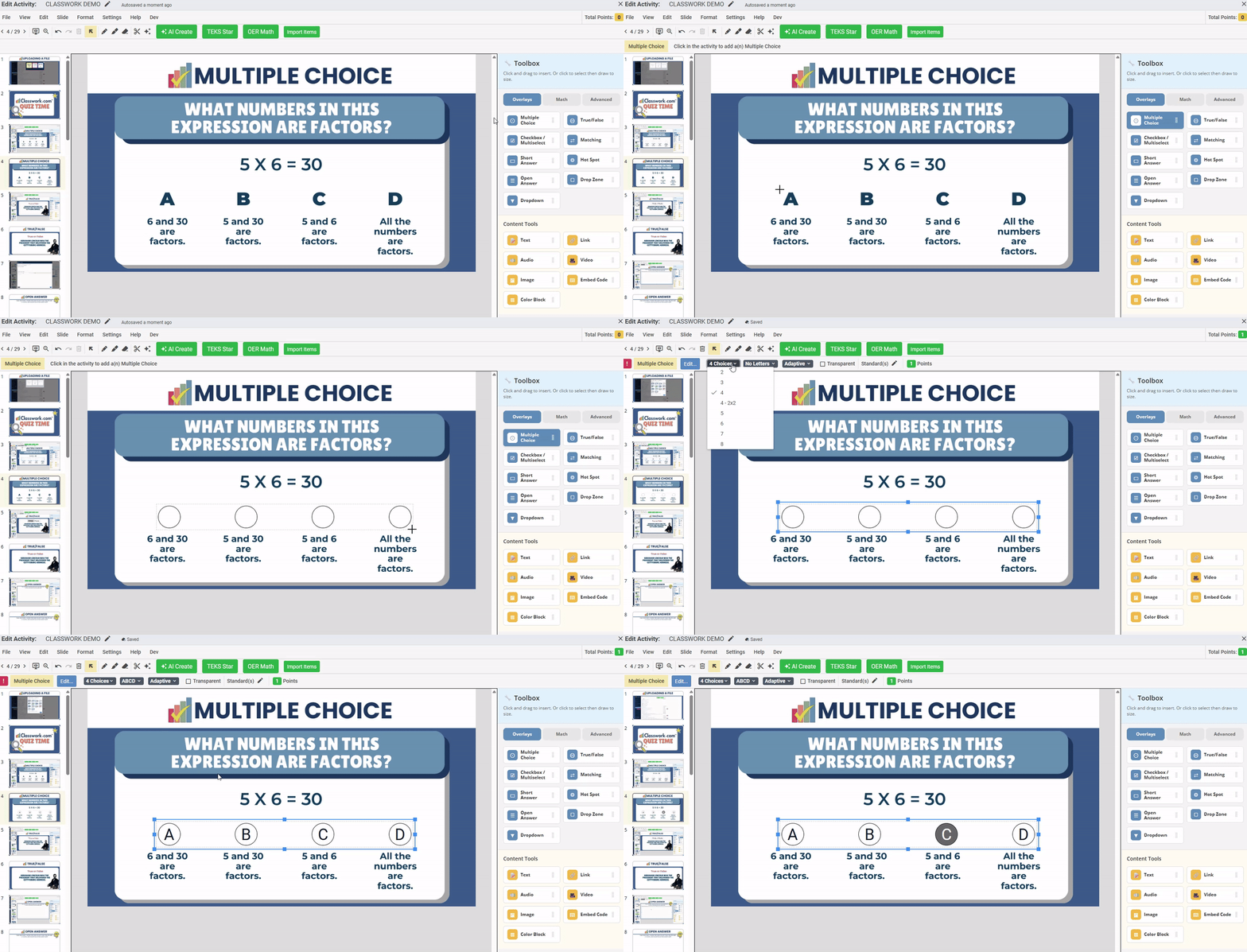
- After selecting the item type, your cursor will change to crosshairs when hovering over the page. Click anywhere to place the interaction box. Click the tool again to deselect it if needed.
- Click and drag to resize and position the interaction over the answer choices.
- Use the toolbar to set the number of answer choices (for example, 4 choices) and label them as needed.

- Click the correct answer bubble (for example, C) to set the answer key. The correct answer will be highlighted, confirming that auto-grading is enabled.
How to Add a Matching Question
Next, add a Matching interaction to Slide 14.
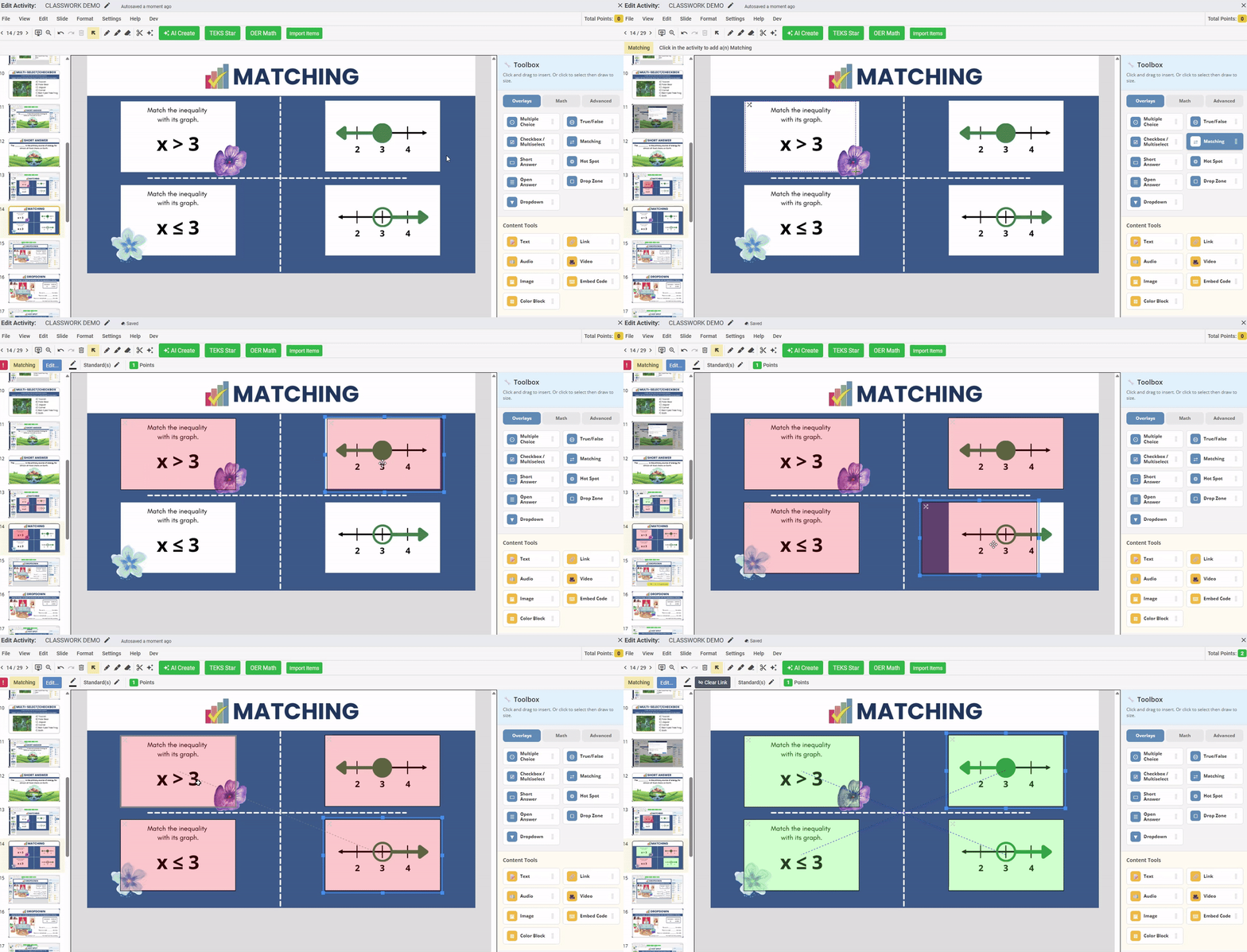
- In the Tool Box on the right, click Matching.
- Click and drag to draw a box around the first item to be matched. The box will turn red, indicating it is ready to link.
Tip:After placing the first box, you can quickly create additional boxes using:- Click Matching again and draw new boxes
- Press the Spacebar to reselect the previously used item type
- Select an existing box and press CTRL + D to duplicate it
- Create the remaining boxes so you have all items needed for matching.
- To link a pair, click one box, then click its match. A dotted line will appear, and both boxes will turn green to confirm the connection.
- Repeat until all pairs are correctly matched.
If you need to remove a match, click Clear Matching Link in the toolbar. 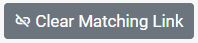
How to Add a Hot Spot Question
Hot Spot questions allow students to click specific areas of an image to answer. You define which areas should be clicked and which should not.
- In the Tool Box, click Hot Spot.
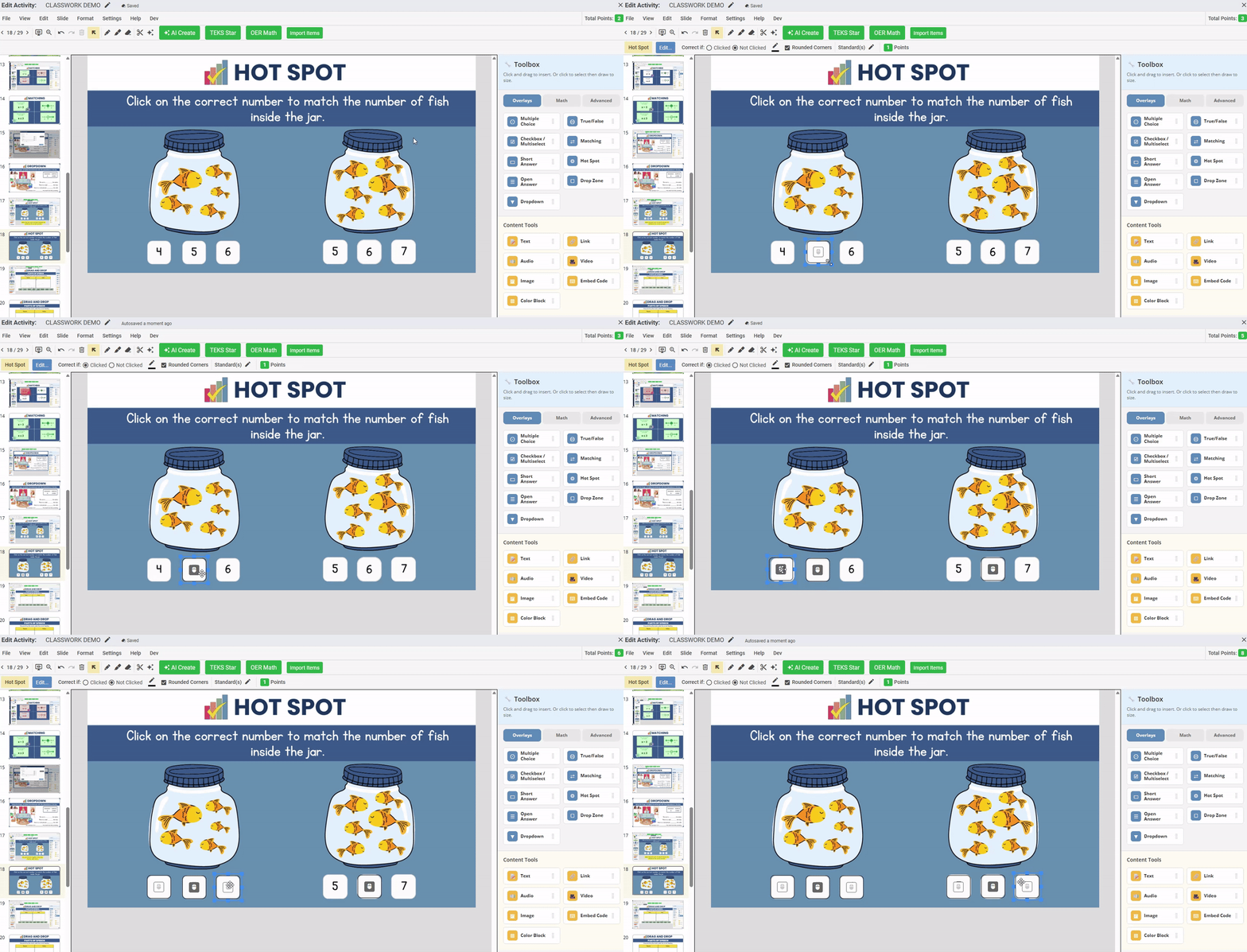
- Click and drag to draw a box over the correct area of the image.
- In the toolbar, select Correct if: Clicked for areas that should be selected.
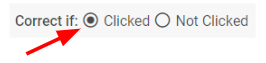
For incorrect areas, select Correct if: Not Clicked.
Use CTRL + D or the Spacebar shortcut to quickly create additional Hot Spot boxes.
After creating all Hot Spots, group them so they are graded as a single question:
- Hold Shift and click each Hot Spot until all are selected.
- Use the toolbar option to group the selected items.

Preview Your Activity
Click the Preview button (monitor icon with an eye) in the top-left corner to view the activity as a student. Complete the activity to confirm scoring works as expected.
You can also compare your version to the example created by the Classwork team: See the Classwork.com Mini-Sampler Activity
What's Next?
You’ve now converted a static worksheet into an interactive, auto-scored activity. Next, learn how to assign it to students: Assign Your Activity to Students
Was this article helpful?
That’s Great!
Thank you for your feedback
Sorry! We couldn't be helpful
Thank you for your feedback
Feedback sent
We appreciate your effort and will try to fix the article