|
|
Move - Activity Menu |
Move an Activity to a Folder

To move an activity to a different folder, go to your Activities page and check the box next to one or more activities. This opens the Activity Menu directly above your selection. Click Move to begin.

A popup will appear showing the name of each selected activity. Below that, use the dropdown to choose the destination folder.
By default, the move is set to your top-level Home folder. Use the dropdown to select any folder or subfolder you have created.
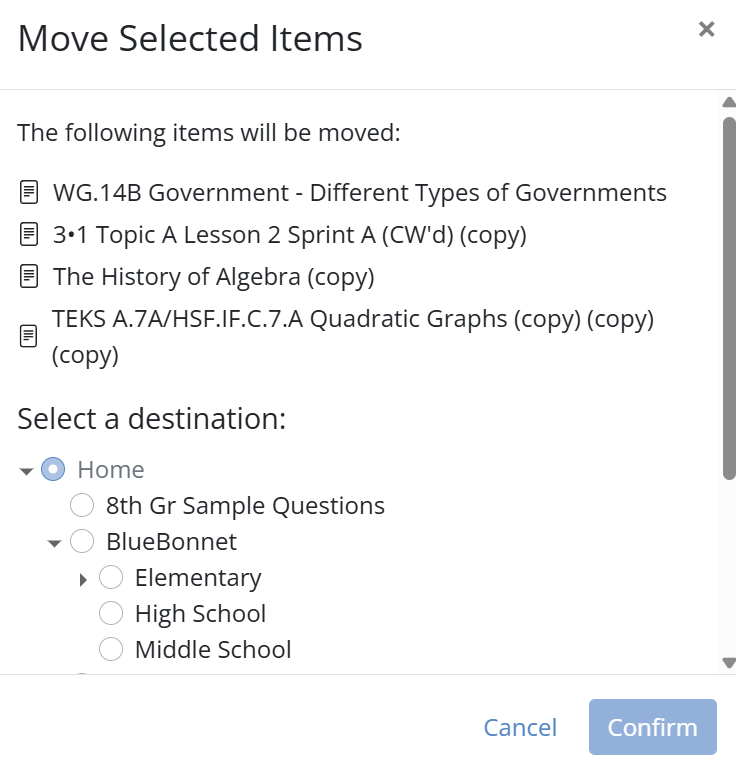
Confirm the move to instantly reorganize your activities.
Are you new to Classwork.com? Welcome!
Click here to start your 30 day risk-free PRO trial today.
Was this article helpful?
That’s Great!
Thank you for your feedback
Sorry! We couldn't be helpful
Thank you for your feedback
Feedback sent
We appreciate your effort and will try to fix the article