|
|
Activity Detail Screen Overview |
Use the Activity Detail Screen
The Activity Detail screen is where you manage everything tied to a specific activity, from editing and sharing to viewing all assignments created from it.
You will land on this screen when you:
- Click the activity name from your Activities page
- Choose Review or Assign from the Activity Menu
Left Panel: Manage the Activity
The left side of the screen focuses on the activity itself.
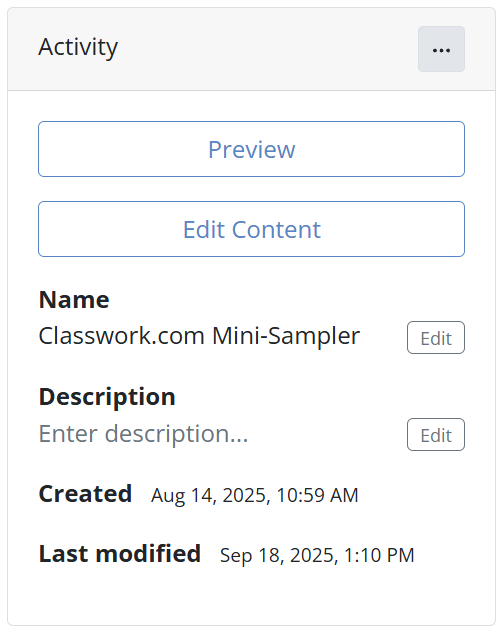
Primary Buttons
- Preview – View the activity as a student would. Some features like Read Aloud are disabled.
- Edit Content – Open the activity in the Activity Editor.
Three-dot menu (⋯)
This condensed menu includes:
- Make a Copy
- Sharing
- Print Activity
- Print Answer Key
- Donate to Sharing Library
- Delete Activity
Editable Details
- Activity Name – Click the edit icon to rename it.
- Description – Add or update a brief summary.
- Created / Last Modified Dates – Displayed at the bottom.
Right Panel: Manage Assignments
The right side displays all assignments created from this activity, one for each class or section.
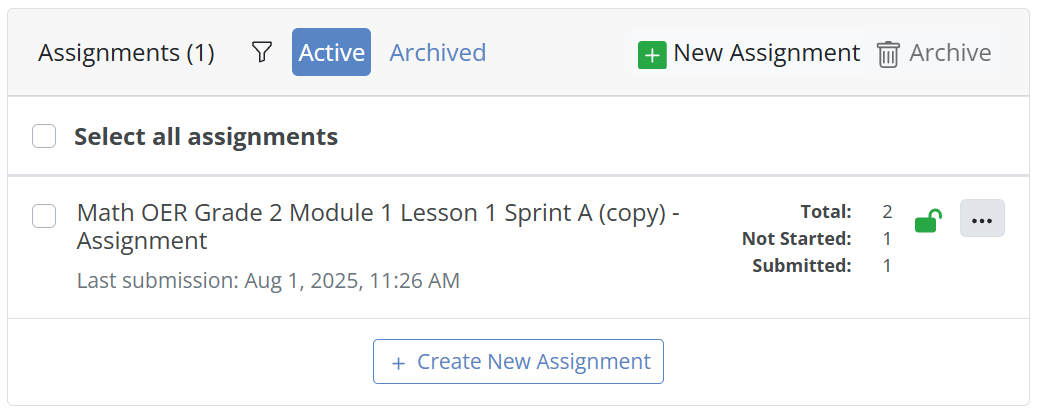
If you assign the same activity to six periods, you will see six separate assignments listed here.
This Panel Includes
- New Assignment – Use the green plus button to assign the activity to another class.
- A toggle to switch between Active Assignments and Archived Assignments.
- Archive – Bulk archive selected assignments.
Assignment Details Displayed
- Assignment Name – LMS Class Name (for example, “Main Idea Practice – 3rd Period Science”).
- Total – Number of students assigned.
- Not Started – Number of students who have not begun.
- Lock Status – Green unlocked icon for active, red locked icon for closed submissions.
- Three-dot menu (⋯)for assignment-specific actions:
- Review All Submissions
- Item Analysis
- Edit Assignment
- Lock or Unlock Assignment
- Export Scores to CSV
- Rescore Assignment
- Archive Assignment
Click any assignment name to open the Assignment Detail screen, where you can review student work, provide feedback, and analyze performance.
Was this article helpful?
That’s Great!
Thank you for your feedback
Sorry! We couldn't be helpful
Thank you for your feedback
Feedback sent
We appreciate your effort and will try to fix the article