|
|
Archive Assignments - Activity Detail Screen |
Archive Assignments from the Activity Detail Screen
To open the Activity Detail screen, go to your Activities page and either:
- Click the name of an activity, or
- Click Review from the Activity Menu
On the Activity Detail screen, look at the right panel. This area lists all assignments tied to that activity.
Because valuable student data is connected to each assignment, assignments cannot be permanently deleted. Instead, you can archive them to remove them from your main view while preserving all data.
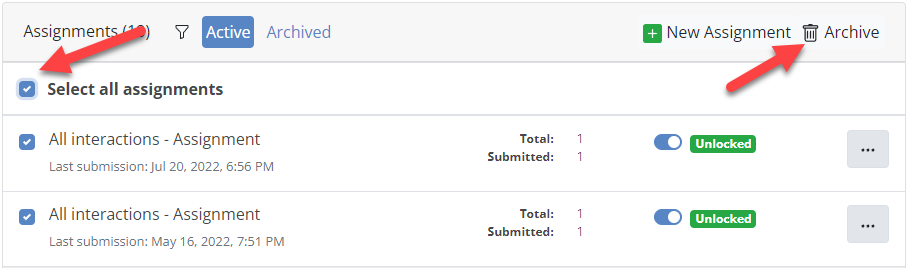
How to Archive Assignments
- In the right panel, check the box next to one or more assignments.
- Click the Archive button (box icon) in the top-right corner of the panel.
- Confirm by clicking the red Confirm Archive button in the popup.

Tip: Use Select all assignments to archive everything for that activity. This is helpful when clearing out previous school years.
View or Restore Archived Assignments

- Toggle from Active Assignments to Archived Assignments at the top of the right panel.
- Click Restore next to any assignment you want to bring back.
- Switch back to Active Assignments to view it with current classwork.

Using Google Classroom, Canvas, or Schoology?
When an assignment is archived, LMS links pointing to it will no longer work for students.
To reuse the activity:
- Create a new assignment using the + New Assignment button.
- For Canvas or Schoology, update the links inside your LMS.
- For Google Classroom, the new assignment will post directly to the selected class during setup.
If you are cleaning up old Google Classroom posts, those must be removed directly within Google Classroom.
Can I Archive in Bulk?
You can archive multiple assignments within the same activity, but not across multiple activities or folders at once.
If bulk folder-level archiving is something you would like to see, please contact support@classwork.com.
Was this article helpful?
That’s Great!
Thank you for your feedback
Sorry! We couldn't be helpful
Thank you for your feedback
Feedback sent
We appreciate your effort and will try to fix the article