|
|
Administrator - Managing Users |
Manage Users in Administration
This article applies only to Administrators with rights to manage users.
To create, modify, and deactivate users in your organization, start by clicking Administration.
Choose your Organization (only necessary if you are an Administrator in more than one Organization).
Then click User List.

User Roles and Permissions
Users in your organization can be assigned different roles, which determine what they can access in Classwork.
- Teacher: Create Activities, make Assignments, and manage Classes.
- User Administrator: Manage users and teams.
- School Administrator: View school-level reports.
- District Administrator: View district-level reports.
- Curriculum Author: Add and manage district curriculum materials.
- Curriculum Reviewer: Review submitted curriculum materials.
The Curriculum Reviewer role is assigned like other roles using the checkbox in the user profile. However, curriculum submissions will only appear for review once the user is added to a designated review team. Here's more on setting up and managing review teams.
This allows selected teachers or administrators to evaluate submitted instructional materials, including those aligned with state requirements such as HB 1605.
To learn more about curriculum review requirements and implications for Texas teachers,
see: HB 1605 Takeaways for Teachers.
All roles other than Teacher will see the Administration menu, but the tools available there depend on the assigned role.
For a complete breakdown of roles and how to assign them, see: Manage User Roles and Permissions.
Finding Users
You can use the Search box to find users. Enter part of their name or email and press Enter.

The list of users will display only users who match your search terms.
You can also sort users to make them easier to find. To sort on any field in the User List, click the up or down arrow next to the field.

Clicking Name, for example, will sort by last name.
Deactivating and Reactivating Users
If a user has left your organization, uncheck the box next to their name. Their account will be removed from your organization.
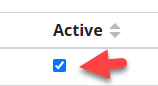
Check the box to reactivate them and re-enable their access to your license.
Adding Users
To add a user to your account, click Add User.
Type their email address in the Primary Email field. The system will search to see if they already have an account.
- If they already have an account, you will be able to modify it.
- If they do not have an account, enter their first and last name to create one. You can also add alternate email addresses.
- If your district supports multiple email domains (such as @mydistrict.org and @apps.mydistrict.org), consider entering both.
Assign a Role
When adding or updating a user, you must assign a role before saving.
- Teacher is the default role for most users.
- Select an administrative role if the user needs access to user management, reporting, or curriculum tools.
All roles other than Teacher will see the Administration menu, but the tools available there depend on the role assigned.
For a full breakdown of available roles and permissions, see: Manage User Roles and Permissions.
Adding More Administrators
If other users in your organization need user management access, they must be assigned the appropriate administrative role.
If you do not currently have a User Administrator in your organization, contact support@classwork.com for help getting the first one set up.
Was this article helpful?
That’s Great!
Thank you for your feedback
Sorry! We couldn't be helpful
Thank you for your feedback
Feedback sent
We appreciate your effort and will try to fix the article