|
|
Assignment Detail Screen Overview |
Assignment Detail Screen Overview
The Assignment Detail screen is your command center for reviewing, managing, and scoring assignments in Classwork. This view lets you monitor student progress, review submissions, and adjust assignment settings.
Left Panel: Assignment Info and Settings

This section displays assignment information and provides options for editing, locking, sharing, and printing.
Top Row of Buttons
- Eye icon – Preview the assignment
- Pencil icon – Edit the activity
- Three-dot menu:
- Edit Assignment
- Lock / Unlock Assignment
- Rescore Assignment
- Edit Student Names
- Print Activity
- Print Answer Key
- Archive Assignment
Assignment Title and Delivery Info
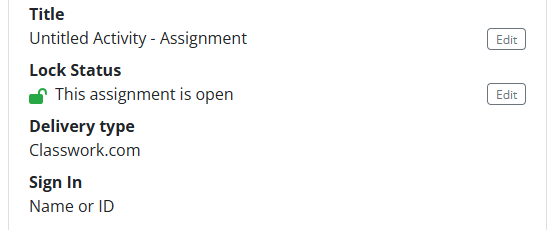
- Title – Displays the assignment name. Use the Edit button to rename it.
- Lock Status
- Green unlocked icon: Assignment is open
- Red locked icon: Assignment is manually closed
- Use Edit to change lock settings
- Delivery Type
- Classwork
- Google Classroom
- Canvas
- Schoology
- Additional Field (varies by delivery method)
- Classwork – Shows sign-in method
- Google Classroom – Shows Google Classroom points
- Canvas / Schoology – No additional field
Sharing and LMS Integration Options
Available options depend on how the assignment was delivered.
- Classwork
- Copy Assignment Link
- Share to Google Classroom
- Share to Microsoft Teams
- Google Classroom
- Message indicating the assignment is published in Google Classroom
- Button linking directly to the Google Classroom assignment
- Canvas or Schoology
- Instructions for LMS setup
- Link to the LMS integration guide
- Direct assignment link for embedding or posting
Right Panel: Student Submissions

This section tracks student progress and allows you to manage submissions.
Three-Dot Menu Options
- Review All Submissions
- Item Analysis
- Reopen / Reset Selected
- Reopen keeps the student's work and allows them to continue
- Reset clears answers so the student can restart
- Set Selected as Completed
- Return Selected
- Undo Return for Selected
- Export Scores to CSV
- Print Selected
Student List
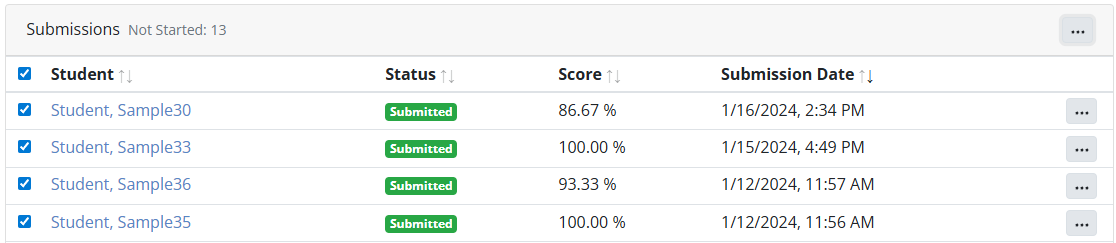
The student list displays:
- Student name
- Status (In Progress, Submitted, Returned, etc.)
- Score
- Submission date and time
- Green indicator when a student is actively working
Student Inline Menu
The three-dot menu next to each student includes:
- Review Submission
- Reopen / Reset
- Set as Completed
- Undo Return
- Print Submission
- Delete Submission
Submission Review Screen
Opening a student submission shows their responses along with grading and feedback tools.
Three-Tier Navigation Menu
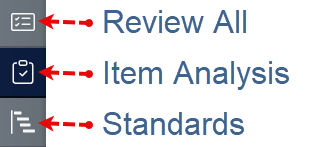
- Review All – Scroll through each student's full submission
- Item Analysis – View class performance by question
- Standards – View results by tagged standards
Exit Review Mode
- Click the Back button in the top right corner to return to the Assignment Detail screen.
Learn More
This screen connects you to nearly every grading and feedback feature in Classwork. For deeper explanations of specific tools, see the related help articles linked throughout this section.
Was this article helpful?
That’s Great!
Thank you for your feedback
Sorry! We couldn't be helpful
Thank you for your feedback
Feedback sent
We appreciate your effort and will try to fix the article