|
|
Assignment Actions Menu (3-Dot Icon) - Assignment Detail Screen |
Assignment Actions Menu (3-Dot Icon) – Assignment Detail Screen
The three-dot menu in the top-left panel of the Assignment Detail screen opens the Assignment Actions Menu. This menu provides quick access to several assignment-level tools and settings.
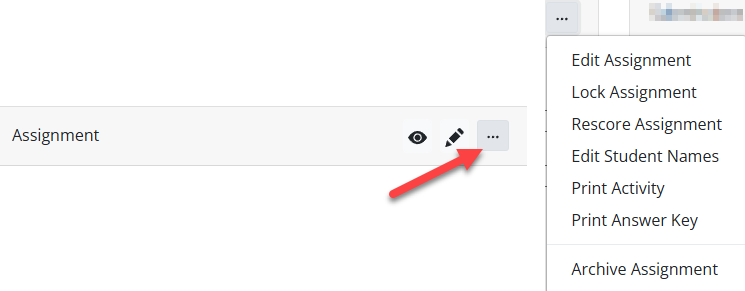
Edit Assignment
Opens the activity in the editor. This option performs the same function as the Pencil icon.
If the activity has already been assigned, it opens in Answer Key Mode, which limits structural edits in order to protect existing student submissions.
Lock Assignment
This option toggles the lock status of the assignment.
Locking an assignment prevents students from continuing work or submitting responses. Unlocking restores student access.
This setting is the same control shown under the assignment title in the Assignment Detail panel.
Rescore Assignment
The Rescore Assignment option is primarily used for assignments connected to an LMS such as:
- Google Classroom
- Canvas
- Schoology
If scores did not sync correctly to the LMS, this option allows you to manually resend updated scores.
Edit Student Names
This option opens the Display Name editor.
You can set a custom display name for students. This name appears throughout Classwork when viewing submissions and reports.
Note: Editing a display name does not change the student’s login information such as their name, ID, or email address. It only changes how the name appears to you inside Classwork.
Print Activity
Opens a printer-friendly version of the activity so you can distribute it as a paper assignment.
Print Answer Key
Generates a printable version of the assignment’s answer key.
Archive Assignment
Moves the assignment into your Archived Assignments list.
This is helpful for keeping your active assignments organized while still preserving access to past work.
Was this article helpful?
That’s Great!
Thank you for your feedback
Sorry! We couldn't be helpful
Thank you for your feedback
Feedback sent
We appreciate your effort and will try to fix the article