|
|
Submission Review Screen Overview - Assignment Detail |
When you open a student’s submission from the Assignment Detail screen, you’ll enter the Submission Review Screen — a focused workspace where you can view, score, and give feedback on individual student work.
Left-Side 3 Tier Navigation Menu
Use the navigation menu on the left to switch between review modes:
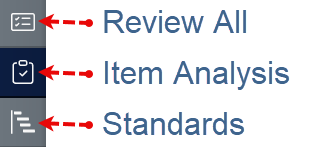
Review All – Scroll through individual student submissions, one at a time. This view allows you to leave feedback, adjust scores, and take actions like reopening or returning assignments.
Item Analysis – View a class-wide breakdown of responses by question. This helps you identify patterns across your class — such as which questions were most frequently missed — and can guide reteaching or intervention.
Standards – See how your class performed by standard, as long as questions were tagged in the activity. Use this view to track TEKS or other framework mastery across your class.
Was this article helpful?
That’s Great!
Thank you for your feedback
Sorry! We couldn't be helpful
Thank you for your feedback
Feedback sent
We appreciate your effort and will try to fix the article