|
|
Deleting Folders |
If you want to delete an entire folder from Classwork.com, it's simple. Here's how:
On your Classwork.com Activities page, click the checkbox to the left of the folder you'd like to delete. A yellow menu bar will appear.

Click on the trash can icon labeled Delete.
Once you do this, you'll see a Delete Selected Items warning pop up. Make sure you're absolutely sure that you want to delete the selected folder and ALL of its contents. Once you're sure, click Confirm Delete.
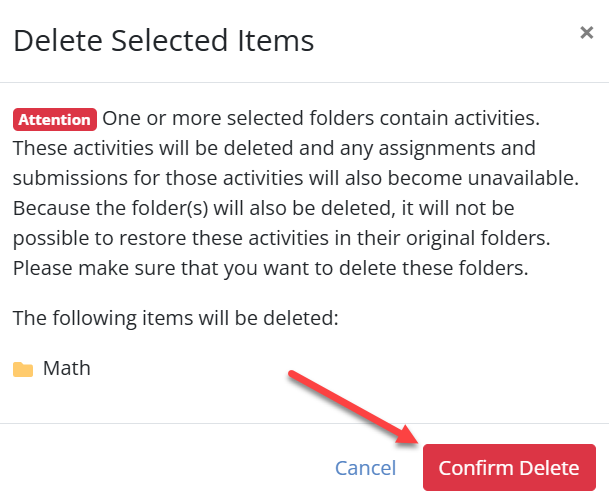
You can follow these same steps to delete a subfolder you've placed inside a main folder.
What Happens After You Delete a Folder
While you can delete an entire folder, the folder itself cannot be recovered once it has been removed. When a folder is deleted, all of the Activities that were inside it are moved to your Trash.
You can restore those Activities individually by recovering them from the Trash. After restoring them, you can create a new folder on your Activities page and move the recovered Activities into it.
For detailed steps on restoring Activities, see Recovering a Deleted Activity.
Note: If you don't want to delete your folder but simply want to move it, see Moving Folders.
Was this article helpful?
That’s Great!
Thank you for your feedback
Sorry! We couldn't be helpful
Thank you for your feedback
Feedback sent
We appreciate your effort and will try to fix the article