|
|
Classes Page Overview |
Classes Page Overview
The Classes page is your home base for managing classes in Classwork. From here, you can connect Google Classroom, create your own classes for Canvas or Schoology, and manage students and assignments directly inside Classwork.

Overview
Each class you have added appears as a card across the top of the page. The colored header shows the class name along with how many students are enrolled.
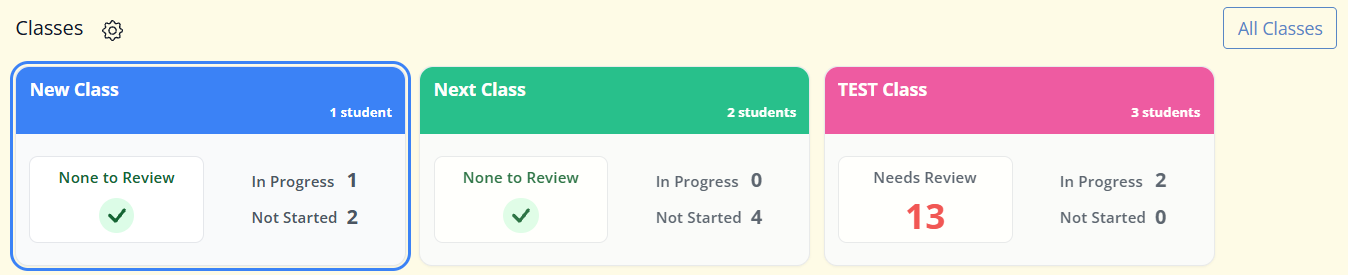
Below the header, each card displays three quick snapshots of student progress:
| Needs Review | Number of student submissions waiting for feedback or return. When nothing is waiting, the card shows None to Review with a checkmark instead of a count. |
| In Progress | Students who opened the assignment but have not submitted it. |
| Not Started | Students who have not begun the assignment. |
Note: “In Progress” means the student accessed the assignment. It does not necessarily indicate recent activity.
View Class Details
Click a class to open its details below. You will see four main tabs:
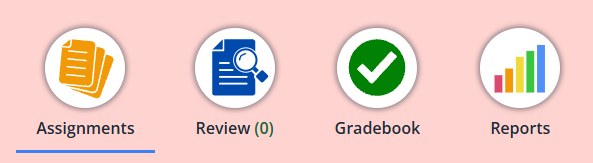
| Assignments | Track assignment progress, see totals across all of your assignments, and check the average score on each one. Assignments Tab – Classes Page |
| Review | Grade and return student work. Submissions are organized into Auto-Scored, Verify AI-Scoring, and Hand Grade sections. Review Tab – Classes Page |
| Gradebook | View scores for every student and assignment within a selected date range. You can click an assignment name to open the Assignment Detail screen, or click a student name to open the Student Detail screen. Gradebook Tab – Classes Page |
| Reports | Track performance and progress over time with the Activity, Quintile, and Standards Mastery reports. Reports Tab – Classes Page |
Adding or Syncing Classes
You can add classes in two ways:
- Sync from Google Classroom – Import existing Google Classroom classes and students.
- Create Your Own Class – Manually create classes if you do not use Google Classroom.
For a full walkthrough, see Sync or Add New Classes – Setup Classes and Students .
Once added, your classes will appear across the top of the Classes page.
Next Steps
Was this article helpful?
That’s Great!
Thank you for your feedback
Sorry! We couldn't be helpful
Thank you for your feedback
Feedback sent
We appreciate your effort and will try to fix the article