|
|
Sync or Add New Classes – Setup Classes and Students |
Sync or Add New Classes
Use the Setup Classes and Students screen to connect classes from Google Classroom or create and manage classes directly in Classwork if you are not using Google Classroom. You can also view and manage archived classes from previous terms.
Open the Setup Page
- From the left menu, click Classes.

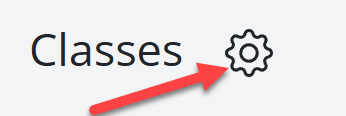
- At the top left of the page, click the gear icon next to Classes.
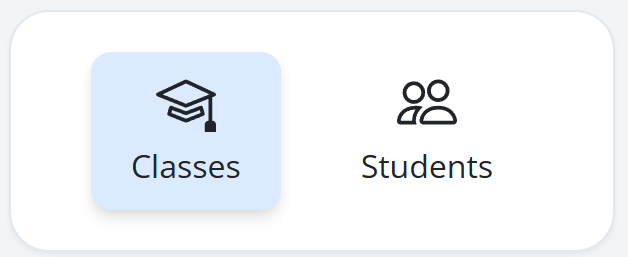
The Setup Classes and Students screen will open. It includes two tabs:
- Classes
- Students
Classes Tab
Select the Classes tab to manage your class list.
On this tab you can:
- Import from Google Classroom
- Create a class manually
- View archived classes
Imported or created classes appear on your Classes page once they are added or reactivated.
Import from Google Classroom
- Click Sync with Google Classroom.
- Sign in to your Google account if prompted.
- Select the classes you want to import.
For each imported class, you can:
- Review the class name pulled directly from Google Classroom.
- Edit the description if needed.
- Choose a color to organize your classes visually.
- Show on Classes Page to make the class visible on your main Classes page.
- View Students to see how many students are currently in the class. Click the number to view the synced student list.
Once synced, your Google Classroom classes automatically update when students join or leave Google Classroom.
Note: Enrollment changes made in Classwork do not sync back to Google Classroom.
Create a Class Manually
If you are not using Google Classroom, you can create classes directly in Classwork. This lets you manage your own classes and enroll or modify students as needed.
- Click Create + New Class.

- Enter your Class Name and Description.
- Choose a Color to help organize your classes visually.
- Check Show on Classes Pageif you want the class to appear on your main Classes page.
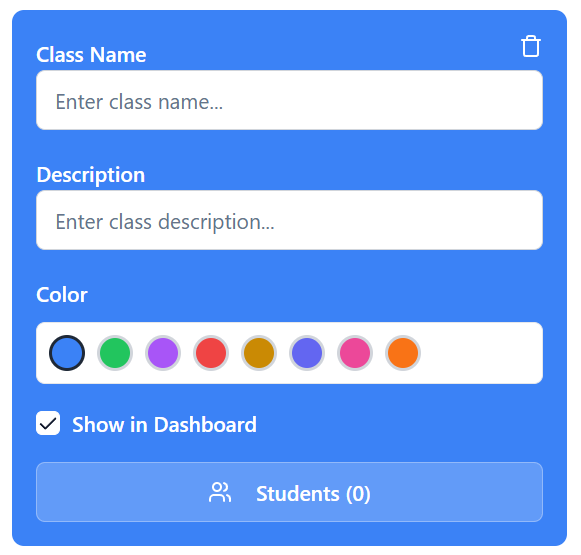
- Click Students to add students.
When adding students:
- You will see a list of your students.
- This may include students you previously entered or students who exist because they submitted assignments in the past.
- Select the students you want to include in the class.
View Archived Classes
Archived classes are stored here so you can restore them when you need to review prior work.
Scroll to Archived Classes to view past or inactive classes. Each class includes a trash can icon if you want to permanently delete it.
To see older assignments or student work after restoring a class, adjust your date filters to include the timeframe when that class was active.
Archiving keeps your Classes page organized while preserving access to previous terms.
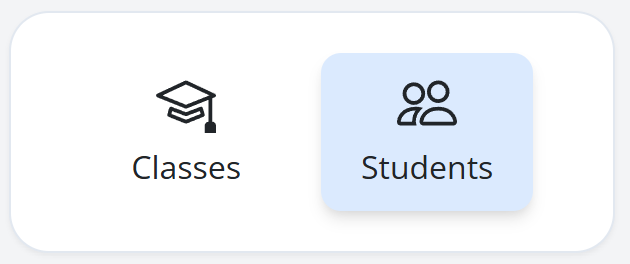
Students Tab
The Students tab shows every student associated with your account in one view, including enrolled students, students who submitted work without being enrolled, and archived students.
This tab helps you manage enrollment, clean up duplicates, and keep your student list organized across terms.
Understanding the Students List
The Students table is divided into three sections:
Enrolled Students
Students who are currently enrolled in at least one class you created manually or imported from Google Classroom.
Other Students
Students who submitted an assignment but are not enrolled in any active class. This commonly occurs when:
- An assignment is shared using the Name or ID sign-in option.
- A class is archived, which removes students from the class but does not archive the students themselves.
Archived Students
Students you intentionally archived to remove them from your active view.
Note: Archiving a class does not archive its students. Those students move to Other Students unless manually archived.
Student Information and Class Enrollment
Each row displays:
- Student name and email address when available
- Class columns showing enrollment for each class
In the class columns:
- A checkmark indicates the student is enrolled in that class.
- You can check or uncheck boxes to add or remove students from classes.
Changes take effect immediately and do not affect past submissions.
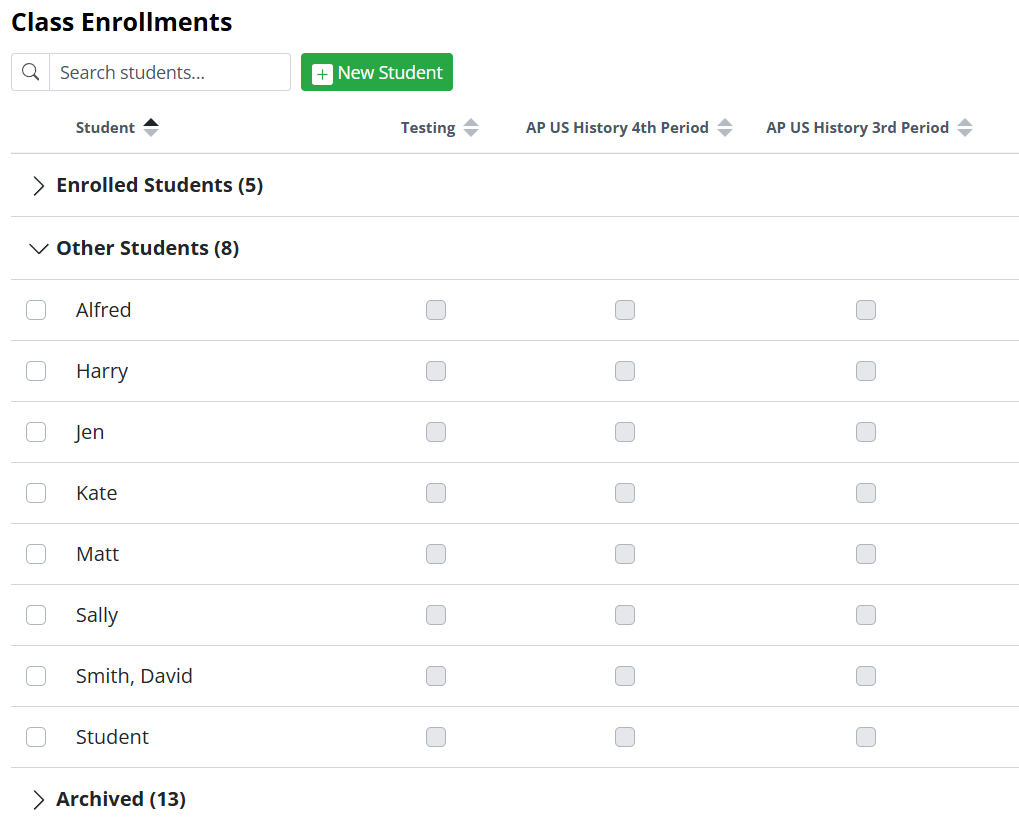
You can quickly add or remove students from multiple classes at once by checking or unchecking boxes.
Sorting Students
You can sort students by clicking column headers:
- Click the Student column to sort names A–Z or Z–A.
- Click any class column header to group students by enrollment in that class.
Sorting applies within each section: Enrolled, Other, and Archived.
Search for Students
Use the search bar at the top to find students by name or email address. Results filter as you type.

Archiving Students
Archiving helps keep your active student list clean without deleting data.
- Click the checkbox to the left of a student name.
- When only one student is selected, an Archive option appears at the bottom of the screen.
- Click Archive.
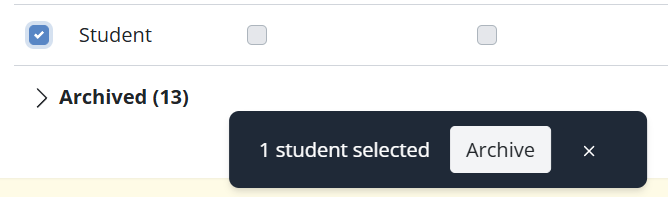
The student moves to the Archived Students section.
Archived students:
- Are not deleted
- Can be restored at any time
- Retain all historical submissions, grades, and feedback
Restoring Archived Students
- Scroll to the Archived Students section.
- Select one or more students using the checkbox.
- Click Restore at the bottom of the screen.
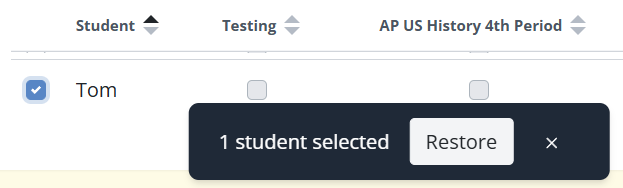
Restored students return to the appropriate active section.
Merging Duplicate Students
Duplicate students can occur when learners submit work using different sign-in methods, such as Name or ID versus email.
- Select two or more students using the checkboxes.
- Click Merge Students at the bottom of the screen.
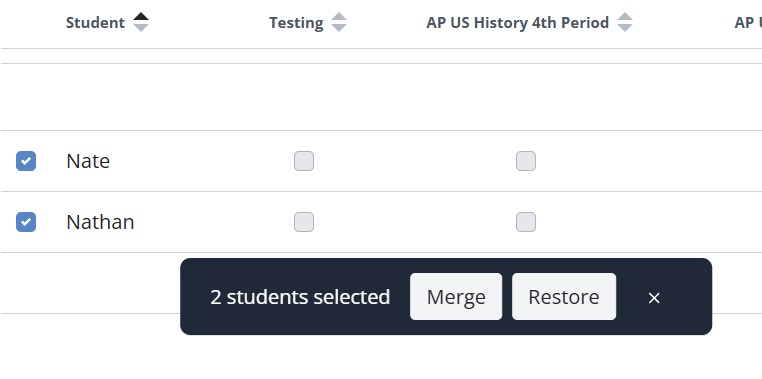
In the confirmation window:
- Choose the student account you want to keep.
- Review the warnings:
- All class enrollments from the other selected students will merge into the chosen student.
- Duplicate student records will be removed.
- This action cannot be undone.
- Click Merge Students to complete the process.
All enrollments, submissions, grades, and feedback are preserved and consolidated into the selected student account.
Add a New Student
To manually add a student who is not already listed:
- Click New Student.
- Enter the student name.
- Assign the student to one or more classes by checking the appropriate class boxes.
- Save your changes by clicking the navy checkbox.
The student appears immediately in your Students list and in the classes you selected.

Newly added students will appear immediately in your Classes.
Was this article helpful?
That’s Great!
Thank you for your feedback
Sorry! We couldn't be helpful
Thank you for your feedback
Feedback sent
We appreciate your effort and will try to fix the article