|
|
Using the Fill in the Blank Question Type |
Create Fill in the Blank Questions
The Fill in the Blank question type lets you build inline response questions where students type answers directly inside a sentence or prompt.
Fill in the Blank works the same in the Flex Editor and the Slide Editor. It’s an authored question, built from scratch rather than overlaid on an existing background.
Add a Fill in the Blank Question
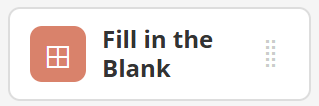
In the Flex Editor, click + Add and choose Fill in the Blank.
In the Slide Editor, open the Tool Box, click Authoring, then click and drag Fill in the Blank onto your Activity.
 |  |
In the Slide Editor, your cursor turns into crosshairs; click once to place the question, or click and drag to set the size.
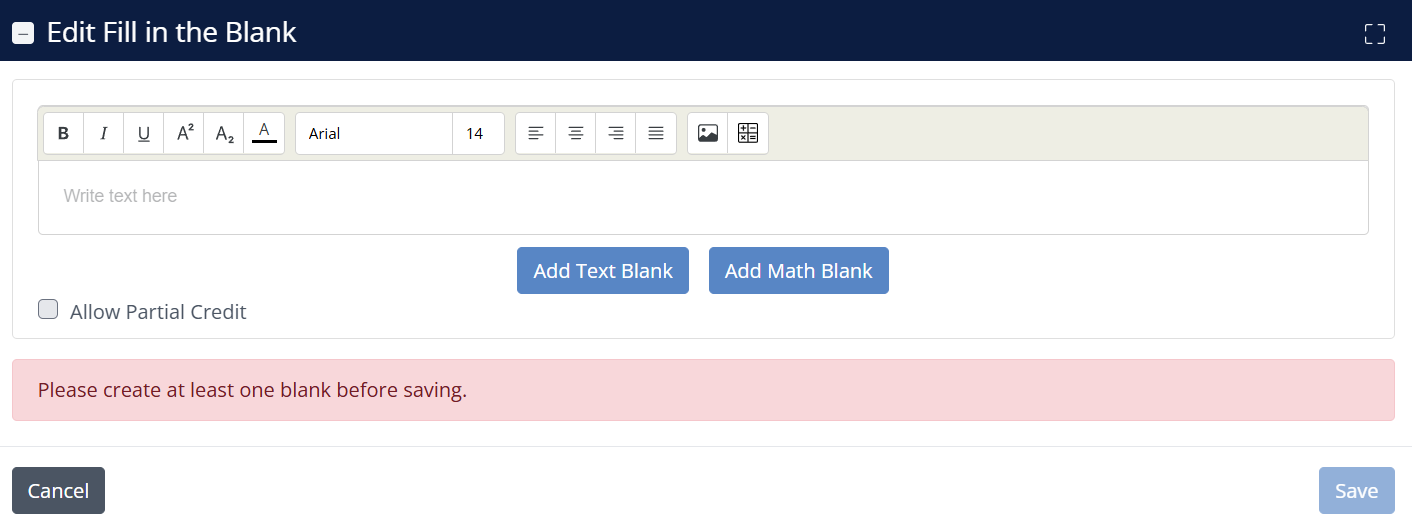
The Edit Fill in the Blank window will open.
Write Your Prompt and Add Blanks
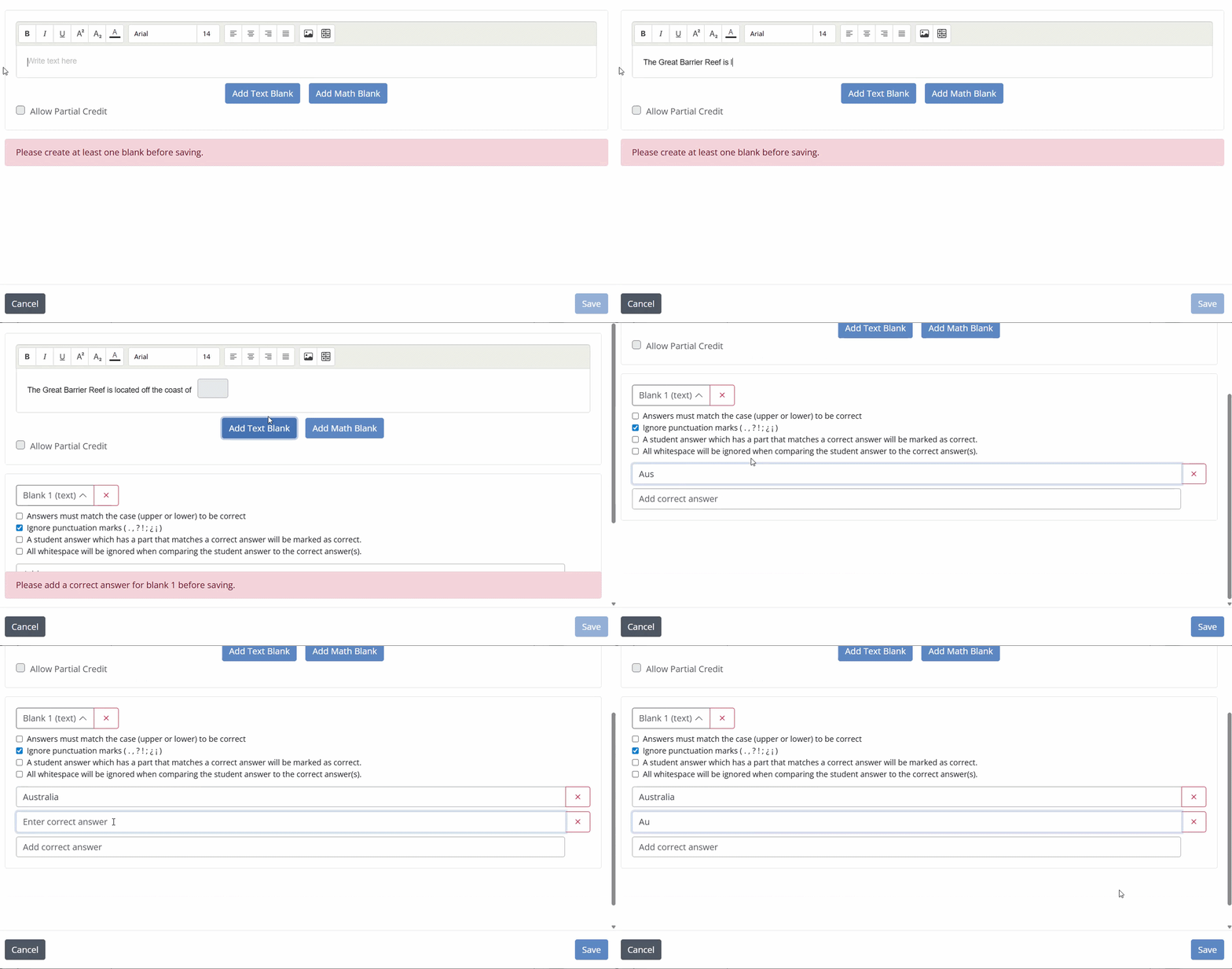
Type your sentence or prompt in the text field. Then add blanks where you want students to respond.
Below the text, choose the type of blank you want to add:
- Add Text Blank creates a blank for short text responses.
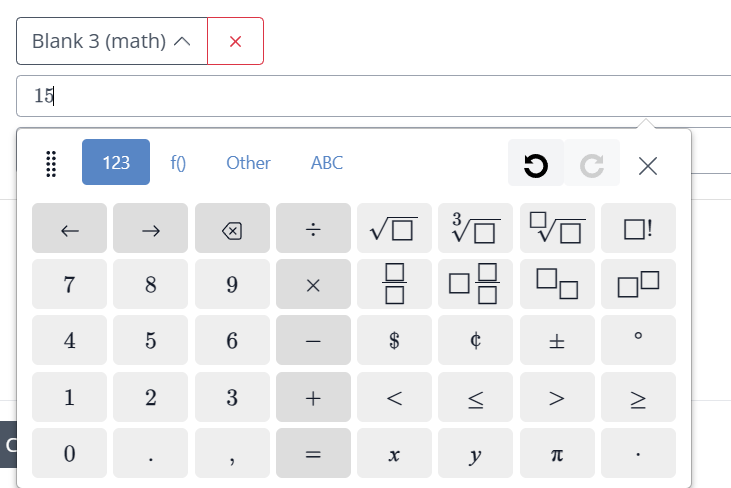
- Add Math Blank creates a blank for math input.

Each time you add a blank, a matching answer area appears below the prompt.
Set the Correct Answer for Each Blank
Each blank creates a corresponding answer section labeled:
- Blank 1 (text), Blank 2 (math), and so on
Enter the correct response for each blank in its matching answer field.
Collapse Blank Answer Areas
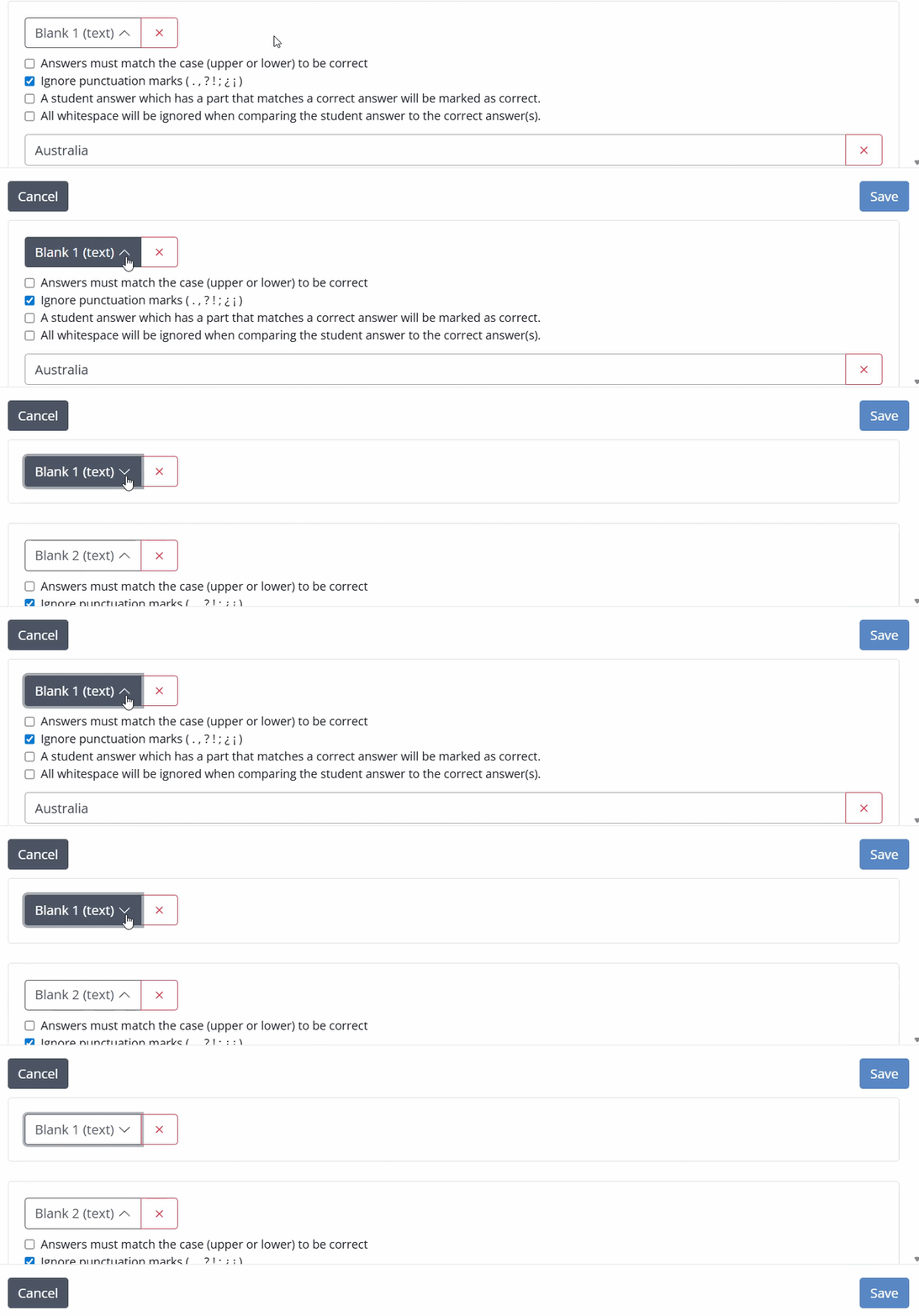
Each blank answer section includes a dropdown caret that allows you to collapse or expand it. This is especially helpful when working with multiple blanks.
Text Blank Answer Settings
Each Text Blank includes adjustable answer matching settings:
- Answers must match the case (upper or lower) to be correct
- Ignore punctuation marks (. , ? ! ; ¿ ¡)
- A student answer which has a part that matches a correct answer will be marked as correct
- All whitespace will be ignored when comparing the student answer to the correct answer(s)
Math Blank Answers
Math blanks support both simple and advanced responses. A correct answer can be a single number or a complex algebraic expression or chemistry equation.
Partial Credit for Multiple Blanks
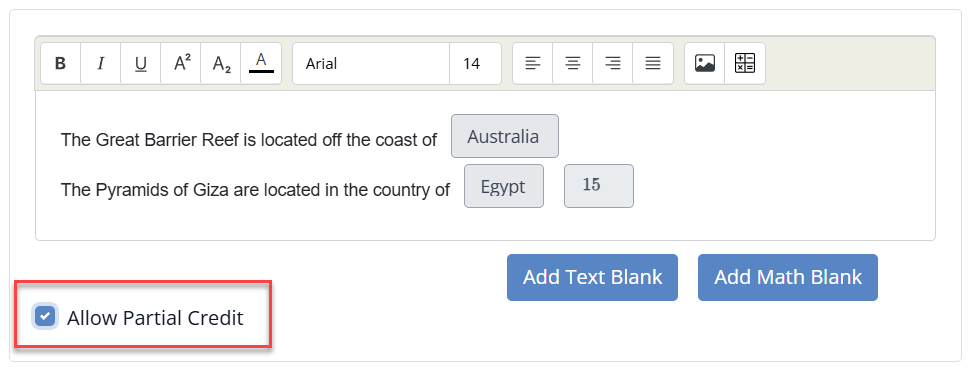
If your question includes more than one blank, enable Allow partial credit to award points based on how many blanks are answered correctly.
Save Your Question
When finished, click Save to add the completed question to your Activity.

Was this article helpful?
That’s Great!
Thank you for your feedback
Sorry! We couldn't be helpful
Thank you for your feedback
Feedback sent
We appreciate your effort and will try to fix the article